
Build a Flexible Website Page Configurator with CSS and JavaScript – Complete 2026 Tutorial
13 hours ago
Would you like to let users instantly customize the look and feel of your website — changing fonts, colors, image effects, and more — without reloading the page? In this comprehensive tutorial, you’ll learn how to build a powerful website page configurator using modern CSS (custom properties and container queries) combined with vanilla JavaScript.
This tool is perfect for:
- Design system demos
- Theme customizers
- Portfolio showcases
- Client presentation tools
- Educational projects demonstrating CSS variables and live customization
By the end, you’ll have a sleek, responsive control panel that lets users tweak the page in real time.
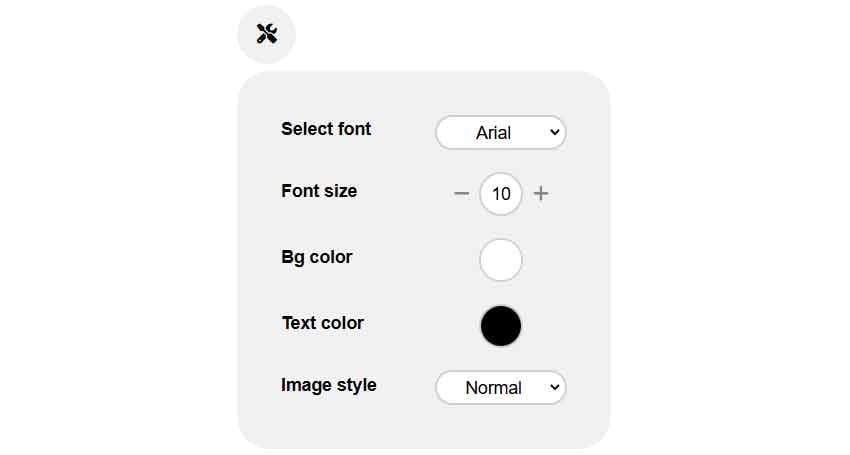
What We’re Building
A floating settings panel with five customization controls:
- Font Family selector (with Google Fonts loading)
- Font Size adjuster (with buttons and number input)
- Background Color picker
- Text Color picker
- Image Style selector (normal, grayscale, blur, rounded)
Clicking the wrench icon toggles the panel, and every change updates the live page instantly using CSS custom properties.
Step 1: HTML Structure
Create index.html:
<!DOCTYPE html>
<html lang="en">
<head>
    <meta charset="UTF-8">
    <meta name="viewport" content="width=device-width, initial-scale=1.0">
    <title>Page Configurator</title>
    <link rel="stylesheet" href="style.css">
    <link rel="stylesheet" href="https://cdnjs.cloudflare.com/ajax/libs/font-awesome/6.5.1/css/all.min.css">
</head>
<body>
    <!-- Toggle Button -->
    <button class="btn-toggle-panel" aria-label="Toggle configurator panel" title="Toggle configurator">
        <i class="fa-solid fa-screwdriver-wrench"></i>
    </button>

    <!-- Configurator Panel -->
    <div class="panel">
        <h2>Customize Page</h2>

        <!-- Font Family -->
        <div class="control-wrapper">
            <label for="font-family">Font Family</label>
            <select id="font-family" name="family">
                <option value="Arial">Arial</option>
                <option value="Fira Sans">Fira Sans</option>
                <option value="Inter">Inter</option>
                <option value="Lato">Lato</option>
                <option value="Montserrat">Montserrat</option>
                <option value="Raleway">Raleway</option>
                <option value="Roboto">Roboto</option>
                <option value="Ubuntu">Ubuntu</option>
            </select>
        </div>

        <!-- Font Size -->
        <div class="control-wrapper">
            <label for="font-size">Base Font Size (px)</label>
            <div class="size-controls">
                <button class="btn-font-size btn-decrease" aria-label="Decrease font size">-</button>
                <input type="number" id="font-size" value="18" min="14" max="32">
                <button class="btn-font-size btn-increase" aria-label="Increase font size">+</button>
            </div>
        </div>

        <!-- Background Color -->
        <div class="control-wrapper">
            <label for="background-color">Background Color</label>
            <input type="color" id="background-color" value="#ffffff">
        </div>

        <!-- Text Color -->
        <div class="control-wrapper">
            <label for="text-color">Text Color</label>
            <input type="color" id="text-color" value="#222222">
        </div>

        <!-- Image Style -->
        <div class="control-wrapper">
            <label for="image-style">Image Style</label>
            <select id="image-style" name="image-style">
                <option value="normal">Normal</option>
                <option value="grayscale">Grayscale</option>
                <option value="blur">Blur</option>
                <option value="rounded">Rounded</option>
            </select>
        </div>

        <button id="reset-btn" class="reset-button">Reset to Defaults</button>
    </div>

    <!-- Demo Content -->
    <main class="demo-content">
        <h1>Welcome to the Configurator Demo</h1>
        <p>This page updates live as you change settings in the panel.</p>

        <img src="https://picsum.photos/id/1015/800/400" alt="Demo image" class="demo-image">

        <h2>Sample Section</h2>
        <p>Lorem ipsum dolor sit amet, consectetur adipiscing elit. Sed do eiusmod tempor incididunt ut labore et dolore magna aliqua.</p>

        <img src="https://picsum.photos/id/237/800/400" alt="Another demo image" class="demo-image">
    </main>

    <script src="script.js"></script>
</body>
</html>
Step 2: Modern CSS with Custom Properties
Create style.css:
:root {
    --font-family: Arial, sans-serif;
    --font-size: 18px;
    --bg-color: #ffffff;
    --text-color: #222222;
    --type: normal;
}

* {
    margin: 0;
    padding: 0;
    box-sizing: border-box;
}

body {
    font-family: var(--font-family);
    font-size: var(--font-size);
    background: var(--bg-color);
    color: var(--text-color);
    line-height: 1.6;
    transition: background 0.4s, color 0.4s;
}

.btn-toggle-panel {
    position: fixed;
    top: 20px;
    left: 20px;
    z-index: 1000;
    width: 56px;
    height: 56px;
    border-radius: 50%;
    background: #fff;
    border: none;
    box-shadow: 0 4px 15px rgba(0,0,0,0.15);
    font-size: 1.4rem;
    cursor: pointer;
    display: flex;
    align-items: center;
    justify-content: center;
}

.panel {
    position: fixed;
    top: 90px;
    left: 20px;
    z-index: 999;
    background: white;
    padding: 25px;
    border-radius: 20px;
    box-shadow: 0 10px 30px rgba(0,0,0,0.2);
    width: 280px;
    transform: translateX(-120%);
    transition: transform 0.4s cubic-bezier(0.4, 0, 0.2, 1);
}

.panel.show {
    transform: translateX(0);
}

.control-wrapper {
    margin-bottom: 22px;
}

label {
    display: block;
    margin-bottom: 8px;
    font-weight: 600;
    font-size: 0.95rem;
}

select, input[type="color"] {
    width: 100%;
    padding: 12px;
    border: 2px solid #ddd;
    border-radius: 12px;
    font-size: 1rem;
}

.size-controls {
    display: flex;
    align-items: center;
    gap: 10px;
}

.btn-font-size {
    width: 40px;
    height: 40px;
    border: 2px solid #ddd;
    background: white;
    border-radius: 10px;
    font-size: 1.2rem;
    cursor: pointer;
}

.reset-button {
    width: 100%;
    padding: 14px;
    background: #e53e3e;
    color: white;
    border: none;
    border-radius: 12px;
    font-weight: 600;
    cursor: pointer;
    margin-top: 15px;
}

.demo-content {
    max-width: 800px;
    margin: 40px auto;
    padding: 40px;
}

.demo-image {
    width: 100%;
    border-radius: 16px;
    margin: 25px 0;
    transition: filter 0.4s, border-radius 0.4s;
}

/* Container Queries for Image Styles */
@container style(--type: grayscale) {
    .demo-image { filter: grayscale(100%); }
}

@container style(--type: blur) {
    .demo-image { filter: blur(4px); }
}

@container style(--type: rounded) {
    .demo-image { border-radius: 50% !important; }
}
Step 3: JavaScript Logic
Create script.js:
const html = document.documentElement;
const toggleBtn = document.querySelector('.btn-toggle-panel');
const panel = document.querySelector('.panel');
const fontFamilySelect = document.getElementById('font-family');
const fontSizeInput = document.getElementById('font-size');
const bgColorInput = document.getElementById('background-color');
const textColorInput = document.getElementById('text-color');
const imageStyleSelect = document.getElementById('image-style');
const resetBtn = document.getElementById('reset-btn');

// Toggle panel
toggleBtn.addEventListener('click', () => {
    panel.classList.toggle('show');
});

// Font Family
fontFamilySelect.addEventListener('change', (e) => {
    const value = e.target.value;

    if (value === 'Arial') {
        html.style.setProperty('--font-family', 'Arial, sans-serif');
        return;
    }

    // Load Google Font dynamically
    const link = document.createElement('link');
    link.rel = 'stylesheet';
    link.href = `https://fonts.googleapis.com/css2?family=${value.replace(/ /g, '+')}:wght@400;700&display=swap`;
    document.head.appendChild(link);

    html.style.setProperty('--font-family', value);
});

// Font Size
const fontSizeBtns = document.querySelectorAll('.btn-font-size');

fontSizeBtns.forEach(btn => {
    btn.addEventListener('click', () => {
        let current = parseInt(fontSizeInput.value);

        if (btn.classList.contains('btn-decrease') && current > 14) {
            current--;
        } else if (btn.classList.contains('btn-increase') && current < 32) {
            current++;
        }

        fontSizeInput.value = current;
        html.style.setProperty('--font-size', `${current}px`);
    });
});

fontSizeInput.addEventListener('change', () => {
    let value = parseInt(fontSizeInput.value);
    if (value < 14) value = 14;
    if (value > 32) value = 32;
    fontSizeInput.value = value;
    html.style.setProperty('--font-size', `${value}px`);
});

// Colors
bgColorInput.addEventListener('input', (e) => {
    html.style.setProperty('--bg-color', e.target.value);
});

textColorInput.addEventListener('input', (e) => {
    html.style.setProperty('--text-color', e.target.value);
});

// Image Style using Container Queries
imageStyleSelect.addEventListener('change', (e) => {
    html.style.setProperty('--type', e.target.value);
});

// Reset to defaults
resetBtn.addEventListener('click', () => {
    // Reset variables
    html.style.setProperty('--font-family', 'Arial, sans-serif');
    html.style.setProperty('--font-size', '18px');
    html.style.setProperty('--bg-color', '#ffffff');
    html.style.setProperty('--text-color', '#222222');
    html.style.setProperty('--type', 'normal');

    // Reset form elements
    fontFamilySelect.value = 'Arial';
    fontSizeInput.value = '18';
    bgColorInput.value = '#ffffff';
    textColorInput.value = '#222222';
    imageStyleSelect.value = 'normal';

    // Close panel
    panel.classList.remove('show');
});
Final Result
You now have a fully working page configurator that updates the entire website live using CSS custom properties and container queries — modern, performant, and extensible.
Next Level Ideas:
- Save settings to localStorage
- Add more controls (spacing, border radius, shadows)
- Export current configuration as JSON
- Add a “Copy CSS” button
- Make it a reusable component
This project beautifully demonstrates the power of CSS custom properties combined with a little JavaScript to create delightful, interactive experiences.
What customization would you add next? Let me know in the comments, and feel free to share your version of the configurator!
FAQ (Frequently Asked Questions)
1. What is this page configurator?
It is an interactive tool that allows users to change a website’s appearance in real time using CSS variables and JavaScript.
2. Do I need a framework like React or Vue?
No. This project is built entirely with HTML, CSS, and vanilla JavaScript.
3. Can the changes be saved?
Not in the basic version, but it can easily be extended using localStorage.
4. Can I use this in a real website?
Yes, especially for design demos, portfolio projects, or theme preview systems.
5. Do changes apply instantly?
Yes, all updates (fonts, colors, sizes, image styles) are applied instantly without page reload.
6. What are CSS custom properties?
They are CSS variables that allow dynamic styling changes through JavaScript.
7. Can I add more features?
Yes, you can extend it with dark mode, spacing controls, border radius, shadows, and export settings.
Leave a Reply