
How to Make All Browsers Render HTML5 Markup Correctly
3 weeks ago · Updated 3 weeks ago
When HTML5 was first introduced to the web development community, it represented something genuinely exciting: a chance to write markup that actually meant something. For years, web developers had been constructing page layouts from endless cascades of <div> elements, assigning arbitrary class and ID names like 'header', 'nav', 'sidebar', and 'footer' to give their structure some human-readable meaning — but doing so in a way that the markup language itself did not recognize or enforce. HTML5 changed that by introducing a set of semantic elements whose very names communicated their purpose.
But there was a catch, and it was a significant one: browser support for these new elements was uneven at best, and effectively nonexistent in Internet Explorer — which, at the time of HTML5's emergence, was still the most widely used browser in the world. IE's famously slow adoption of web standards meant that developers who wanted to use HTML5's semantic elements faced a difficult choice: either use modern markup and accept that a large portion of your audience would see a broken layout, or continue using div-based layouts and forgo the benefits of semantic HTML entirely.
This tutorial tackles that problem head-on. We will walk through every aspect of building an HTML5 semantic layout — understanding the new elements, writing the CSS, confronting the Internet Explorer problem, and applying the JavaScript solution that makes everything work. We will also zoom out to examine why all of this matters: what semantic HTML actually contributes to the web, how browser rendering engines work, and what the legacy of this particular challenge teaches us about web development in general.
By the end of this tutorial, you will have a complete understanding of how to build a two-column HTML5 layout that works correctly in every major browser from Internet Explorer 6 onwards — and you will understand deeply why every step of the solution works, not just what to type.
| TUTORIAL DETAILS AT A GLANCE |
| 📋 Technology: HTML5, CSS, JavaScript |
| ⚡ Difficulty: Intermediate (familiarity with HTML, CSS, and basic JavaScript assumed) |
| ⏱️ Estimated completion time: 45–60 minutes |
| 🌐 Browser coverage: IE6+, Firefox, Safari, Chrome, Opera |
| 🎯 What you will build: A responsive 2-column semantic HTML5 layout |
| 🔧 Key technique: The HTML5 Shiv (createElement-based IE fix) |
| 📦 Dependencies: None — pure HTML, CSS, and vanilla JavaScript |
The State of the Web Before HTML5
To fully appreciate what HTML5's semantic elements offer, it is worth spending a moment on the state of web markup before they arrived. In the mid-2000s through the early 2010s, web developers building layouts without tables (the tableless layout revolution had been underway for several years) were doing so almost exclusively with <div> elements styled via CSS. The structural HTML of a typical web page looked something like this: a div with class 'header,' containing perhaps a div with class 'logo' and another with class 'navigation.' Below that, a div with class 'main-content' sitting beside a div with class 'sidebar.' At the bottom, a div with class 'footer.'
This approach worked, and it produced maintainable, accessible pages that were considerably better than the table-based layouts that preceded them. But it had a fundamental limitation: the markup itself carried no inherent meaning about the content it contained. The word 'header' in the class attribute of a div was meaningful only to the human developer reading the code and to any CSS or JavaScript that happened to reference that class name. To the browser, to search engine crawlers, and to screen readers used by visually impaired users, it was just another anonymous block container.
This was not merely an aesthetic concern. Search engines use the structure of web pages to understand their content and assign relevance to different sections. If the navigation menu, the main article, the sidebar advertisements, and the footer links are all wrapped in identical anonymous divs, a search engine has to work much harder to distinguish them — and may not always get it right. Screen readers used by blind and visually impaired users similarly benefit enormously from markup that explicitly identifies regions of a page: knowing that a region is marked as a nav element means the screen reader can offer the user the option to skip over navigation and jump directly to the main content, which is a significant usability advantage.
The Promise of Semantic HTML
HTML5's answer to this challenge was a set of new structural elements whose names directly described their purpose. Rather than a div with class 'header,' you could now write an actual <header> element. Rather than a div with class 'nav,' you could write a <nav> element. The content of the page was now described not just by developer-assigned class names but by the markup language itself, in a way that any standards-compliant browser, crawler, or assistive technology could interpret without needing to guess at the developer's intentions.
The benefits of this approach extend across several dimensions. For the developer, semantic HTML is more readable and self-documenting: you can understand a page's structure by scanning its HTML without needing to decode class names or consult documentation. For search engines, semantic HTML provides clearer signals about which parts of a page contain the primary content, which contain navigation, and which contain supplementary or peripheral information. For accessibility tools, semantic HTML enables more sophisticated interaction patterns that improve the experience for users who rely on them.
But realizing these benefits required getting all major browsers to actually support the new elements — and in the early days of HTML5, that was far from guaranteed.
A Deep Dive into HTML5 Semantic Elements
Before writing any code, it is worth building a thorough understanding of each of the HTML5 semantic elements we will be using in our layout. Each one has a specific meaning and appropriate use case, and using them correctly — rather than simply swapping divs for semantic tags arbitrarily — is what produces the genuine benefits of semantic HTML.
The <header> Element
The <header> element represents introductory content for its nearest ancestor section or the page as a whole. In a page-level context, a <header> typically contains the site's logo, the primary site title or branding, and possibly primary navigation. But <header> is not limited to use at the top of a page — it can also be used within an <article> or <section> element to provide introductory content for that specific subsection.
A key nuance: there can be multiple <header> elements on a single page, each serving as the header for its containing section. A blog page might have a page-level <header> containing the site branding, and each individual blog post in an <article> element might have its own <header> containing the post's title, author, and publication date. This is semantically correct and represents a significant improvement over the single, ambiguous 'header' div of pre-HTML5 layouts.
The <footer> Element
Like <header>, the <footer> element describes its purpose through its name: it represents footer content for its nearest ancestor section. At the page level, a footer typically contains copyright information, secondary navigation links, legal notices, and contact information. Within an article or section, a footer might contain the author's bio, article tags, related posts links, or a comment section.
The same multiple-instance rule applies to <footer> as to <header>: a page can have as many footer elements as it has sections that require footer content. However, <footer> elements should not contain sectioning content — they are for concluding or ancillary content, not for introducing new content sections.
The <nav> Element
The <nav> element marks a section of the page that contains navigation links — either within the current page (a table of contents, for example) or to other pages (the primary site menu). Not every group of links needs to be wrapped in a <nav> element: footer links and social media icons, for instance, do not necessarily constitute 'navigation' in the semantic sense. The <nav> element should be reserved for major navigation blocks.
Screen readers can use the <nav> element to give users the ability to skip navigation — a feature that significantly improves usability for keyboard and screen-reader users who would otherwise have to tab through every navigation link before reaching the main content of each page.
The <article> Element
The <article> element represents a self-contained, independently distributable piece of content. Blog posts, news articles, product listings, forum posts, and user comments are all good candidates for the <article> element. The test for whether content belongs in an <article> is whether it would make sense if distributed independently from the rest of the page — a blog post that could be syndicated via RSS, for example, is a perfect <article>.
Articles can contain their own headers, footers, navigation, sections, and even nested articles. A blog post article might have a header with the title and metadata, a section for the main content, and a footer with author information and tags. User comments within the post are themselves articles nested within the main article.
The <hgroup> Element
The <hgroup> element (which has had an interesting history in the HTML5 specification, having been removed and then reconsidered) groups a set of heading elements — h1 through h6 — when a content block has both a main heading and a subheading or tagline. Without hgroup, pairing a post title with a subtitle creates ambiguity about the heading hierarchy of the page. With hgroup, the grouping makes clear that both headings together constitute a single, compound title for the section.
The hgroup element is particularly useful for blog posts that have a title and a subtitle, for articles with a main title and a deck, or for any content where a heading-level title is accompanied by a secondary descriptive element. When used correctly, it preserves the semantic integrity of the heading hierarchy that screen readers and search engines use to understand page structure.
| Element | Purpose | Typical Content | Multiple Per Page? |
| <header> | Introductory content | Logo, title, primary nav | Yes (one per section) |
| <footer> | Concluding/ancillary content | Copyright, links, author bio | Yes (one per section) |
| <nav> | Navigation links | Menus, table of contents | Yes (major nav blocks) |
| <article> | Self-contained content | Blog posts, news, comments | Yes (as many as needed) |
| <hgroup> | Heading group | Title + subtitle together | Yes (per heading group) |
| <section> | Thematic grouping | Content with a theme/topic | Yes (outline sections only) |
Building the HTML5 Layout
With a solid understanding of each element's purpose, we can now construct our HTML5 layout. We are building the most common layout pattern on the web: a two-column design with a header at the top, navigation, a main content area with an article, a sidebar, and a footer at the bottom. This pattern appears in the vast majority of blogs, news sites, documentation sites, and informational web pages.
The Document Structure
We begin with the outer document structure. Notice the use of the HTML5 doctype declaration — a clean, simple string compared to the verbose XHTML and HTML 4 doctypes that preceded it. The HTML5 doctype tells the browser to render in standards mode and to expect HTML5 markup.
| <!DOCTYPE html>
<meta http-equiv="Content-Type" content="text/html; charset=utf-8">
<html> <head> <title>My HTML5 Layout</title> <link rel="stylesheet" href="styles.css"> </head>
<body> <header> <!-- Site header: logo, branding --> </header>
<nav> <!-- Primary navigation links --> </nav>
<div id="main"> <!-- Main content area --> </div>
<footer> <!-- Site footer: copyright, links --> </footer> </body> </html> |
Notice that the main content wrapper uses a <div> with an id of 'main' rather than a <section> element. This is a deliberate choice that reflects a subtlety in the HTML5 specification that confuses many developers who encounter it for the first time. The <section> element is not a generic container for layout purposes — it is specifically for content that would appear in the document's outline as a distinct thematic section. A column wrapper used for positioning purposes does not meet this criterion, so a <div> is the semantically correct choice here.
The HTML5 specification is explicit about this: when an element is needed for styling or scripting purposes rather than to mark a distinct content section, developers should use <div>. This is one of the areas where the spec's guidance helps prevent overuse of semantic elements, which would paradoxically undermine their meaning.
Adding Article Content
Within the main div, we add our article content using the <article> and <hgroup> elements:
| <div id="main">
<article> <hgroup> <h2>Article Title</h2> <h3>Article Subtitle or Tagline</h3> </hgroup>
<p> Article content goes here. This is the main body of the post. </p>
<footer> <p>Written by <strong>Author Name</strong> | Published January 2010</p> </footer> </article>
<article> <!-- Additional articles follow the same pattern --> </article> </div> |
This structure is clean, self-documenting, and genuinely meaningful. Reading the HTML alone, even without any CSS or JavaScript, you can immediately understand what each part of the page is and what it contains. The article elements clearly delineate individual content items. The hgroup makes the title/subtitle relationship explicit. The footer within the article contains article-specific metadata rather than page-level information. This is semantic HTML working exactly as intended.
Writing the CSS for HTML5 Elements
With our HTML structure in place, we need to write CSS that will style and position our elements correctly. Here we encounter the first significant challenge of working with HTML5 semantic elements: browser default stylesheets.
Understanding Browser Default Stylesheets
Every browser ships with a default stylesheet that determines how HTML elements are displayed before any developer-specified CSS is applied. This is why an unstyled HTML page with headings, paragraphs, and links looks more or less consistent across different browsers — the browser itself is applying default styling. For well-established elements like <div>, <p>, <h1>, and <a>, browsers have well-defined default styles that you can rely on and override predictably.
But what happens when a browser encounters an element it does not recognize? The answer varies by browser and by the specific element, but in general the behavior is undefined — which means inconsistent. An unknown element might receive no styling at all, in which case its display behavior is unpredictable. It might inherit some default styling. In some cases, it might not be rendered at all, with its content appearing as if the element tags were not there. This is precisely what happens in Internet Explorer with HTML5 elements — but even in more standards-compliant browsers, we cannot make assumptions about default styling for elements they may not fully support.
The Display: Block Declaration
The solution for CSS is straightforward and requires just one line. By explicitly declaring our HTML5 elements as block-level elements, we remove any ambiguity about how they should be rendered and ensure consistent behavior across all browsers that will apply CSS:
| /* Force HTML5 elements to display as block-level for consistent styling */
header, nav, article, footer, address, section, aside, hgroup { display: block; } |
This single rule is enormously powerful in its simplicity. By telling every CSS-capable browser that these elements should be treated as block-level elements — like <div> — we establish a consistent baseline rendering across the full spectrum of browser support. Browsers that natively support HTML5 semantics will follow this instruction. Browsers with partial support will benefit from the explicit override. And browsers that would otherwise ignore or mishandle these elements will at minimum render them as block containers.
From this foundation, you can apply all the usual CSS positioning, sizing, color, typography, and spacing rules to HTML5 semantic elements exactly as you would to any <div>. Float-based layouts, flexbox, grid — all CSS layout techniques apply to elements with display: block set. There is no magic or special treatment required: a block-level element is a block-level element, regardless of its tag name.
A Complete CSS Example
Here is a more complete CSS implementation for our two-column layout, showing how the semantic elements receive the same CSS treatment as divs would in a non-HTML5 layout:
| /* === Reset and HTML5 baseline === */
header, nav, article, footer, address, section, aside, hgroup { display: block; }
/* === Page structure === */ body { width: 960px; margin: 0 auto; font-family: Arial, sans-serif; }
header { width: 100%; background: #2c3e50; color: #ffffff; padding: 20px; box-sizing: border-box; }
nav { width: 100%; background: #34495e; padding: 10px 20px; }
nav a { color: #ffffff; text-decoration: none; margin-right: 20px; }
#main { float: left; width: 640px; padding: 20px; box-sizing: border-box; }
article { margin-bottom: 40px; border-bottom: 1px solid #ecf0f1; padding-bottom: 40px; }
footer { clear: both; width: 100%; background: #2c3e50; color: #bdc3c7; padding: 20px; box-sizing: border-box; } |
With this CSS applied and a standards-compliant browser like Safari or Firefox, our layout looks exactly as intended: a full-width header, a navigation bar below it, a main content column with articles, and a footer at the bottom. Clean, semantic, and visually correct.
The problem is that we have not yet addressed Internet Explorer. And when we test this same layout in IE6, the results are disappointing.
The Internet Explorer Problem — Why IE Ignores HTML5
Understanding why Internet Explorer fails to render HTML5 elements correctly requires a brief look at how browser rendering engines work when they encounter unknown elements. This is not just a historical curiosity about an old browser — it illustrates fundamental aspects of how browsers process HTML that remain relevant today.
How Browsers Process Unknown HTML Elements
When a browser's HTML parser encounters a tag it does not recognize, it has several options. Modern browsers following the HTML5 parsing specification are required to add unknown elements to the DOM (document object model) as generic elements, preserving the document's structure even when unknown tags are encountered. This is why modern browsers handle HTML5 semantic elements correctly even before they have specific built-in support: the elements are parsed, added to the DOM, and styled according to whatever CSS applies to them.
Internet Explorer's legacy rendering engine — used through IE8 and partially in IE9 — takes a different approach. When IE encounters an unknown element, it does not add it to the DOM as a generic element. Instead, it effectively ignores the element as a container, treating its content as if the containing element were not there. The result is that the content of <header>, <nav>, <article>, and <footer> elements appears in the document, but the elements themselves have no presence in the DOM and cannot be styled via CSS.
This explains precisely what we see when our HTML5 layout is rendered in IE6: the content is there, but the structural containers — the header, nav, article, footer — might as well not exist. The CSS we wrote for those elements has nothing to attach to, so the layout collapses entirely, with all content flowing together without any of the structural positioning we intended.
Why CSS Alone Cannot Fix This
A natural first instinct might be to try to fix this problem through CSS alone — perhaps by using IE-specific conditional comments to apply different styling for Internet Explorer. But this approach cannot work, because the fundamental problem is not a CSS issue. The CSS is correct; the problem is that IE's HTML parser never creates the DOM nodes for our HTML5 elements in the first place. There are no elements for the CSS to style.
You could add the most precisely targeted IE-specific CSS in the world, but if IE has not created a DOM node for the <header> element because it does not recognize that tag, no CSS selector for 'header' will ever match anything in the IE DOM. The fix must happen at the parsing level — before CSS rendering even begins.
Discovering the createElement Solution
The breakthrough insight that led to the HTML5 Shiv technique was discovered by web developer Sjoerd Visscher and popularized by Faruk Ates and, crucially, John Resig (creator of jQuery). The discovery was that calling document.createElement() with the name of an unrecognized element — before the browser's HTML parser encounters that element in the document body — causes IE to register the element type and properly construct DOM nodes for it when parsing.
The mechanism behind this behavior is an undocumented feature of IE's rendering engine: the createElement call effectively 'teaches' IE about the element type, causing the parser to handle it correctly in subsequent parsing. While the exact internal mechanics were not publicly documented by Microsoft, the effect was reliable and reproducible across IE versions, making it a viable fix for production use.
The HTML5 Shiv — The JavaScript Solution
The HTML5 Shiv (sometimes spelled 'Shiv,' sometimes 'Shim' — the latter is arguably more technically precise, referring to a piece of code that patches a missing feature, while 'shiv' is a historical term for a makeshift tool, though both spellings are used interchangeably in practice) is the JavaScript fix that resolves IE's HTML5 parsing problem. It is elegant in its simplicity and remarkably effective in its scope.
How the Shiv Works
The core technique involves calling document.createElement() for each HTML5 element you want IE to recognize. Critically, these calls must be made in the <head> section of the document, before IE's parser has begun processing the <body> — before it has encountered the HTML5 element tags it does not yet recognize. Here is the essential code:
| <!--[if lt IE 9]>
<script> document.createElement("article"); document.createElement("aside"); document.createElement("details"); document.createElement("figcaption"); document.createElement("figure"); document.createElement("footer"); document.createElement("header"); document.createElement("hgroup"); document.createElement("mark"); document.createElement("menu"); document.createElement("meter"); document.createElement("nav"); document.createElement("output"); document.createElement("progress"); document.createElement("section"); document.createElement("summary"); document.createElement("time"); </script> <![endif]--> |
Notice the IE conditional comment wrapping the script: <!--[if lt IE 9]>. This means the script only runs in Internet Explorer versions below 9, where the fix is needed. IE9 and later added native support for HTML5 elements, and modern browsers never execute this code at all — it is invisible to them because they do not parse IE conditional comments.
The document.createElement() calls themselves require no parameters beyond the element name, and no reference to a container or position in the DOM. You are not actually inserting these elements anywhere — you are simply forcing IE's JavaScript engine to register these tag names as known element types. The side effect of this registration is that when IE's HTML parser subsequently encounters these tags in the document body, it treats them as known elements and creates proper DOM nodes for them.
Remy Sharp's html5shiv Library
While the manual createElement approach works perfectly well and is easy to understand, developer Remy Sharp created a complete, maintained JavaScript library called html5shiv that handles all HTML5 elements in a single, well-tested script inclusion. The library is included via a conditional comment so it only loads in IE:
| <!--[if lt IE 9]>
<script src="https://cdnjs.cloudflare.com/ajax/libs/html5shiv/3.7.3/html5shiv.min.js"> </script> <![endif]--> |
The html5shiv library does everything the manual createElement calls do, but also handles edge cases, works correctly in IE's print stylesheet context (a common edge case that the simple createElement approach misses), and has been maintained and tested across a wider range of IE versions and configurations. For production use, particularly on public-facing websites with diverse user bases, the library approach is preferable to manually listing createElement calls.
Verification: IE6 After the Fix
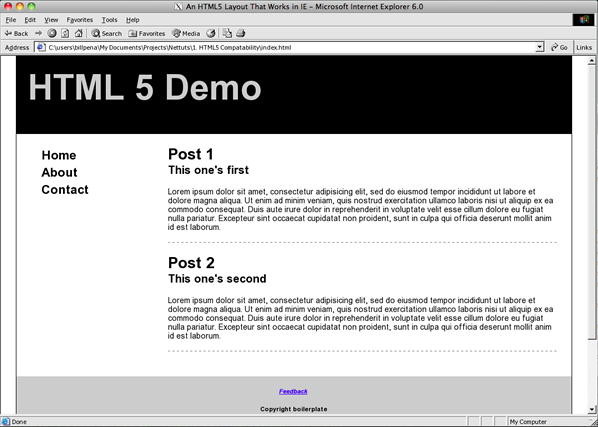
After adding the JavaScript fix — either the manual createElement calls or the html5shiv library — and reloading in Internet Explorer 6, the layout renders correctly. The semantic elements that IE's parser was previously ignoring are now properly recognized, the CSS rules that target them take effect, and the two-column layout appears as designed. Internet Explorer 6, despite being a browser that dates from 2001, renders our HTML5 semantic layout correctly.
This is the remarkable outcome that made the HTML5 Shiv one of the most important web development techniques of its era: with a few lines of JavaScript, the newest version of HTML's markup language could be used in the oldest still-relevant browser without any compromise in the author's code or the user's experience.
The Complete, Production-Ready Implementation
Bringing all the pieces together, here is the complete production-ready implementation of our HTML5 semantic layout with full cross-browser compatibility:
The Complete HTML File
| <!DOCTYPE html>
<html lang="en"> <head> <meta charset="UTF-8"> <meta http-equiv="X-UA-Compatible" content="IE=edge"> <title>HTML5 Semantic Layout</title>
<!-- HTML5 Shiv for IE < 9 --> <!--[if lt IE 9]> <script> document.createElement("article"); document.createElement("footer"); document.createElement("header"); document.createElement("hgroup"); document.createElement("nav"); document.createElement("section"); document.createElement("aside"); </script> <![endif]-->
<link rel="stylesheet" href="styles.css"> </head> <body>
<header> <hgroup> <h1>My Website</h1> <h2>Tagline Goes Here</h2> </hgroup> </header>
<nav> <ul> <li><a href="/">Home</a></li> <li><a href="/about">About</a></li> <li><a href="/contact">Contact</a></li> </ul> </nav>
<div id="main"> <article> <header> <hgroup> <h2>Post Title</h2> <h3>Post Subtitle</h3> </hgroup> </header> <p>Post content goes here...</p> <footer> <p>By Author Name | January 2010</p> </footer> </article> </div>
<footer> <p>© 2010 My Website. All rights reserved.</p> </footer>
</body> </html> |
The Complete CSS File
| /* === HTML5 Element Baseline (for all browsers) === */
article, aside, details, figcaption, figure, footer, header, hgroup, menu, nav, section { display: block; }
/* === Global Reset === */ * { box-sizing: border-box; margin: 0; padding: 0; }
body { font-family: Georgia, serif; font-size: 16px; line-height: 1.6; color: #333333; width: 960px; margin: 0 auto; }
/* === Page Header === */ body > header { background: #2c3e50; color: white; padding: 30px 20px; }
/* === Navigation === */ nav { background: #34495e; padding: 0 20px; } nav ul { list-style: none; } nav li { display: inline-block; } nav a { color: white; text-decoration: none; padding: 12px 16px; display: block; } nav a:hover { background: #2c3e50; }
/* === Main Content === */ #main { float: left; width: 640px; padding: 30px 20px; }
article { margin-bottom: 40px; padding-bottom: 40px; border-bottom: 1px solid #ecf0f1; }
article > footer { margin-top: 20px; color: #7f8c8d; font-size: 0.875em; font-style: italic; }
/* === Sidebar === */ #sidebar { float: right; width: 280px; padding: 30px 20px; }
/* === Page Footer === */ body > footer { clear: both; background: #2c3e50; color: #bdc3c7; padding: 20px; text-align: center; } |
Best Practice: Always include the display: block rule for HTML5 elements at the very top of your stylesheet, before any other rules. This ensures the baseline rendering behavior is established before any other styles are applied.
Section 8: Modern Context — HTML5 Today and Beyond
The tutorial techniques we have covered were written in the context of the web development landscape of 2009 and 2010, when HTML5 was new and Internet Explorer was still the dominant browser. It is worth examining how this landscape has changed and what of this tutorial remains relevant to modern web development.
The End of IE6 as a Target
Internet Explorer 6 has long since passed its end-of-life date — Microsoft formally ended support for IE6 in 2014, and IE11 (the last version of Internet Explorer) reached end of life in 2022. Microsoft Edge, IE's successor, is a modern Chromium-based browser with excellent HTML5 support. In contemporary web development, targeting IE6 (or even IE11) is no longer a requirement for the vast majority of projects.
This means that the JavaScript createElement fix described in this tutorial is no longer necessary for new projects. Modern browsers — Chrome, Firefox, Safari, Edge, Opera, and their mobile variants — all natively support HTML5 semantic elements without any JavaScript assistance. The conditional comment technique still works for maintaining legacy codebases, but new projects can use HTML5 semantic elements without any JavaScript polyfill.
HTML5 Semantic Elements in the Modern Era
HTML5 semantic elements are now universally supported and universally recommended as best practice. The web development community has broadly adopted them, and their usage is now standard in professional web development. More importantly, the benefits they were originally designed to deliver have become more significant over time, not less.
Search engine optimization (SEO) has become an increasingly sophisticated field, and search engines now use semantic HTML signals more actively than ever in determining page structure and content relevance. Pages that use proper semantic elements — marking their primary content as <article>, their navigation as <nav>, their supplementary content as <aside> — give search engines clearer signals about content hierarchy and relationship, which generally translates to better search performance.
Web accessibility has also grown in importance and in the sophistication of the tools available to users who rely on it. Modern screen readers like NVDA, JAWS, and VoiceOver make extensive use of HTML5 landmark elements — header, nav, main, article, aside, footer — to provide users with document navigation features that dramatically improve the usability of well-structured pages. The WAI-ARIA (Web Accessibility Initiative - Accessible Rich Internet Applications) specification has further extended the semantic layer of HTML with additional attributes that screen readers and other assistive technologies use.
New Semantic Elements Added Since This Tutorial
The HTML5 specification has continued to evolve since the original publication of this tutorial, adding several new semantic elements that are worth knowing. The <main> element identifies the dominant content of the document body, providing a single landmark for screen reader users to jump to. The <figure> and <figcaption> elements provide semantic markup for images and other media with associated captions. The <time> element marks up dates and times in a machine-readable format. The <mark> element highlights text that is relevant in a specific context. The <details> and <summary> elements create disclosure widgets — interactive accordion-style sections — without requiring JavaScript.
These additions reflect an ongoing philosophy of progressively extending HTML's semantic vocabulary to cover common web content patterns that previously required non-semantic workarounds. Each new element follows the same principle that motivated the original HTML5 semantic elements: markup should describe what content means, not just how it should look.
Frameworks, Components, and Custom Elements
Modern web development has introduced new dimensions to semantic HTML through component-based frameworks like React, Vue, and Angular, as well as through the Web Components standard's custom elements feature. These technologies allow developers to define their own HTML elements — including names like <user-card>, <nav-menu>, or <data-table> — with custom behavior and styling encapsulated within the component definition.
From an HTML5 Shiv perspective, custom elements face similar but distinct challenges: browsers that do not recognize custom element names need to be told about them for proper DOM construction. The Custom Elements polyfill, available from the WebComponents project, provides this functionality in a similar manner to how html5shiv handled HTML5 semantic elements — by teaching the browser about unknown element types so they can be properly parsed and styled.
Lessons, Best Practices, and the Bigger Picture
The HTML5 Shiv technique is more than just a fix for a specific browser compatibility problem. It illustrates several broader principles of web development that remain valuable long after the specific problem it solved has become obsolete.
Progressive Enhancement
The approach taken in this tutorial exemplifies the principle of progressive enhancement: start with a solid, meaningful foundation (semantic HTML), enhance it with additional behavior (CSS styling, JavaScript fixes) where the environment supports it, and ensure that the core content and structure remain accessible even where enhancement is not possible.
The HTML5 layout we built delivers its content meaningfully regardless of browser support level. A browser that fully supports HTML5 gets the full experience with proper semantic structure. IE with the JavaScript fix gets the same full experience through a compatibility layer. A browser with JavaScript disabled in an IE context gets the content without the semantic layout — but the content is still there. This layered approach to browser support, building from a resilient foundation rather than requiring all features to be present for any content to appear, is a defining characteristic of robust web development.
The Importance of Understanding Browser Rendering
One of the most valuable aspects of working through the HTML5 Shiv problem is the understanding it requires of how browsers actually render HTML. Knowing that browsers maintain default stylesheets, that CSS depends on DOM nodes existing, that IE's parser handles unknown elements differently from standards-compliant parsers, and that JavaScript execution order relative to HTML parsing affects what the parser 'knows' — all of this knowledge translates into better debugging skills, better architectural decisions, and a clearer mental model of what happens between a user requesting a URL and seeing a rendered page.
CSS Resets and Baseline Styling
The display: block CSS rule for HTML5 elements is a form of CSS reset — establishing a known baseline state for elements before any intentional styling is applied. The broader concept of CSS resets (and their modern descendant, CSS normalizers) reflects the same insight: you cannot style elements predictably without first establishing a consistent baseline, because different browsers apply different default styles that can produce unexpected variation in rendered output.
Modern CSS frameworks and methodologies continue to apply this lesson. Whether you use a full reset stylesheet, a normalizer like normalize.css, or a modern utility-first framework like Tailwind CSS that includes its own baseline reset, the principle is the same: establish known, consistent starting conditions before applying intentional design.
| SUMMARY: THE THREE-STEP HTML5 CROSS-BROWSER SOLUTION |
| Step 1 — HTML: Use semantic HTML5 elements (<header>, <nav>, <article>, <footer>, <hgroup>) to structure your content meaningfully |
| Step 2 — CSS: Add display: block to all HTML5 elements at the top of your stylesheet to establish consistent baseline rendering |
| Step 3 — JavaScript: Add HTML5 Shiv createElement calls (or the html5shiv library) in the <head>, wrapped in IE conditional comments, to fix IE's parsing of unknown elements |
| Modern note: Steps 2 and 3 are no longer required for new projects targeting modern browsers. Step 1 (semantic HTML) remains best practice and is strongly recommended. |
Conclusion: Semantic HTML and the Timeless Value of Meaningful Markup
The journey from div-soup to semantic HTML5, and the elegant solution for making those semantic elements work in Internet Explorer, is a story about much more than browser compatibility. It is a story about what markup is for, and why it matters that the language we use to structure web content should reflect the meaning of that content.
HTML5's semantic elements — header, nav, article, footer, section, aside, figure, time, mark, and the rest — represent a maturation of the web as a medium. They acknowledge that web pages are not just visual arrangements of styled boxes but structured documents with identifiable regions that serve different purposes: navigation, primary content, supplementary information, metadata, and conclusions. Marking these regions explicitly in the markup itself, rather than encoding them only in human-readable class names, makes the web more accessible to users with disabilities, more legible to search engines, more maintainable by developers, and more robust in the face of changes in the tools that process and display web content.
The HTML5 Shiv was a clever, pragmatic response to the practical obstacle of deploying this meaningful new markup language in the face of a browser that had not yet adopted the relevant standard. The technique worked — elegantly and reliably — and enabled an entire generation of web developers to write better, more meaningful markup without waiting for Internet Explorer to catch up.
Today, the specific fix is no longer needed. Internet Explorer is retired, and every browser in common use supports HTML5 semantic elements natively. But the techniques and principles illustrated in this tutorial — progressive enhancement, browser-agnostic baseline CSS, understanding the relationship between JavaScript and HTML parsing, and above all the commitment to markup that communicates meaning — are as relevant as ever. The web has changed dramatically since 2010, but the best practices it illustrated have endured.
Write HTML that means something. Apply CSS that establishes a solid baseline. Use JavaScript to enhance, not to compensate for avoidable markup problems. And when you encounter a browser compatibility problem, take the time to understand why it occurs before reaching for a fix — because the understanding will serve you far beyond the specific problem at hand.
FAQ – HTML5 Semantic Layout & Browser Compatibility
1. What is HTML5 semantic markup?
HTML5 semantic markup uses meaningful elements like <header>, <nav>, <article>, and <footer> to clearly describe the structure and purpose of web content, instead of relying only on generic <div> elements.
2. Why are semantic elements important?
Semantic HTML improves:
- Readability for developers
- SEO (Search Engine Optimization)
- Accessibility for screen readers
- Maintainability of code
3. What problem did developers face with HTML5 in early browsers?
Older browsers, especially Internet Explorer (IE6–IE8), did not recognize new HTML5 elements. As a result, layouts broke because those elements were not properly rendered in the DOM.
4. Why didn’t CSS alone fix the issue?
Because Internet Explorer didn’t create DOM nodes for unknown elements, CSS had nothing to style. The issue was at the browser parsing level, not styling.
5. What is the HTML5 Shiv?
The HTML5 Shiv is a JavaScript solution that uses document.createElement() to force older versions of Internet Explorer to recognize HTML5 elements so they can be styled properly.
6. How does the HTML5 Shiv work?
It registers HTML5 elements in IE before the page is rendered, allowing the browser to treat them as valid elements and apply CSS styling correctly.
7. Why do we use display: block for HTML5 elements?
To ensure consistent rendering across all browsers, especially those that don’t apply default styles to new semantic elements.
8. Is the HTML5 Shiv still needed today?
No. Modern browsers fully support HTML5 semantic elements. The Shiv is only relevant for legacy projects targeting very old browsers like IE8 or below.
9. What is the difference between <section> and <div>?
- <section> is used for meaningful, thematic grouping of content.
- <div> is used purely for layout or styling when no semantic meaning is needed.
10. What are best practices for using HTML5 today?
- Use semantic elements correctly
- Keep layout and meaning separate
- Ensure accessibility with proper structure
- Avoid unnecessary <div> usage
- Focus on modern browser compatibility
Leave a Reply