
20+ HTML Forms Best Practices for Beginners in 2026: Create Professional, Accessible, and User-Friendly Forms
4 days ago
HTML forms are one of the most important parts of any website. Whether you’re building a contact form, registration page, checkout, survey, or login screen, a well-designed form can make or break the user experience.
In this comprehensive beginner-friendly tutorial, we’ll cover 20+ practical HTML form best practices that will help you create forms that are:
- Semantically correct
- Highly accessible
- Functionally robust
- Visually appealing and user-friendly
These tips work whether you’re coding from scratch or customizing a template. Let’s dive in and build better forms in 2026!
Why Good HTML Forms Matter
Forms are interactive bridges between users and your website. Poorly designed forms lead to frustration, high abandonment rates, accessibility issues, and lost conversions. Following best practices helps you:
- Improve user experience (UX)
- Boost accessibility and SEO
- Reduce errors and support tickets
- Create mobile-friendly, responsive forms
- Make maintenance easier
Let’s break it down into four main categories: Semantics, Accessibility, Functionality, and Design.
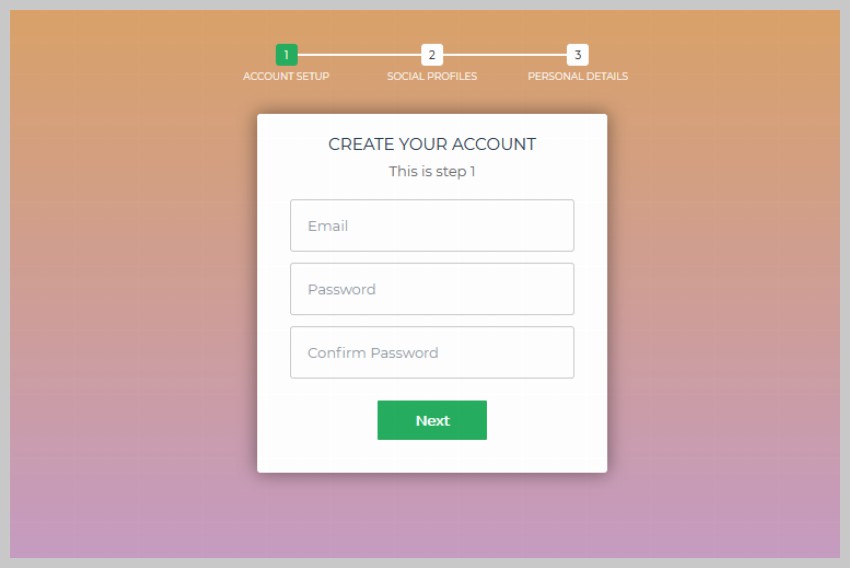
Semantics: Build Forms with Proper HTML Structure
1. Use <fieldset> to Group Related Fields
When a form has many fields, group them logically using the <fieldset> element. This improves both code readability and screen reader experience.
<fieldset>
    <legend>Billing Address</legend>
    <label for="bill-street">Street Address</label>
    <input type="text" id="bill-street" name="bill_street">

    <label for="bill-city">City</label>
    <input type="text" id="bill-city" name="bill_city">
</fieldset>
2. Always Pair <fieldset> with <legend>
The <legend> element serves as the title for the group and is essential for accessibility.
<fieldset>
    <legend>Shipping Address</legend>
    <!-- fields here -->
</fieldset>
3. Give Every Input a name Attribute
The name attribute is required for form data to be submitted correctly to the server.
<input type="text" name="first_name" id="first_name">
4. Always Use the <label> Element
Never use <span> or plain text for labels. The <label> element is the correct semantic choice.
5. Connect Labels with the for Attribute
Always link labels to inputs using matching for and id values. This makes the entire label clickable.
<label for="email">Email Address</label>
<input type="email" id="email" name="email">
Benefit: Clicking the label focuses the input — a huge win for usability and accessibility.
6. Use <optgroup> to Organize Long <select> Lists
Group options logically in dropdowns:
<select id="country" name="country">
    <optgroup label="North America">
        <option value="us">United States</option>
        <option value="ca">Canada</option>
    </optgroup>
    <optgroup label="Europe">
        <option value="uk">United Kingdom</option>
        <option value="de">Germany</option>
    </optgroup>
</select>
7. Choose the Right type Attribute for Inputs
HTML5 offers many input types. Use them for better UX and built-in validation:
- type="email"
- type="tel"
- type="url"
- type="date"
- type="number"
- type="password"
These trigger appropriate keyboards on mobile devices and enable basic validation.
8. Prefer <button> Over <input type="submit">
The <button> element is more flexible and easier to style:
<button type="submit">
    <span>Sign Up</span>
    <i class="icon-arrow-right"></i>
</button>
You can include icons, images, or complex markup inside buttons.
Accessibility: Make Your Forms Usable by Everyone
9. Use Proper tabindex Order
Ensure users can tab through fields in a logical sequence. Avoid skipping numbers.
10. Add accesskey for Important Fields (Sparingly)
Useful for power users (e.g., search box):
<label for="search"><u>S</u>earch</label>
<input type="text" id="search" accesskey="s">
11. Provide Clear Focus Styles
Make focused fields visually obvious:
input:focus,
textarea:focus,
select:focus {
    border-color: #0066ff;
    box-shadow: 0 0 0 3px rgba(0, 102, 255, 0.2);
    outline: none;
}
12. Design with Screen Readers in Mind
- Always use proper labels
- Avoid hiding labels with display: none
- Use aria-label or aria-labelledby when necessary
- Test with screen readers like NVDA or VoiceOver
13. Use the placeholder Attribute Wisely
Placeholders should provide examples, not repeat the label:
<label for="email">Email Address</label>
<input type="email" id="email" placeholder="you@example.com">
Functionality: Make Forms Work Reliably
14. Set the Correct enctype for File Uploads
<form action="upload.php" method="post" enctype="multipart/form-data">
15. Choose method="GET" or method="POST" Correctly
- Use GET for search forms or filters (idempotent)
- Use POST for actions that change data (login, registration, payments)
16. Always Validate on Both Client and Server
- Client-side validation improves UX (HTML5 + JavaScript)
- Server-side validation is mandatory for security
17. Leverage HTML5 Validation Attributes
<input
    type="email"
    required
    minlength="5"
    maxlength="100"
    pattern="[a-z0-9._%+-]+@[a-z0-9.-]+\.[a-z]{2,}$">
Other useful attributes: required, pattern, min, max, step.
18. Use the <datalist> Element for Smart Suggestions
<label for="browser">Favorite Browser</label>
<input list="browsers" id="browser" name="browser">

<datalist id="browsers">
    <option value="Chrome">
    <option value="Firefox">
    <option value="Safari">
</datalist>
19. Show Clear, Helpful Error Messages
Place error messages near the problematic field and make them specific:
<span class="error">Please enter a valid email address.</span>
20. Consider AJAX for Better UX
For simple forms (contact, newsletter), use AJAX to submit without page reload.
21. Ensure Forms Work Without JavaScript
Always provide a fallback. Test by disabling JavaScript in your browser.
Design: Create Beautiful and Usable Forms
22. Maintain Visual Consistency
- Keep all text inputs the same width
- Align labels consistently (left, top, or right)
- Use consistent spacing and padding
23. Style Form Elements with Modern CSS
Use pseudo-classes for better feedback:
input:valid { border-color: #4caf50; }
input:invalid { border-color: #f44336; }
24. Take Inspiration from Great Forms
Study well-designed forms on CodePen, Dribbble, and popular SaaS products. Look for clean layouts, helpful micro-interactions, and progressive disclosure.
Bonus Best Practices (2026 Edition)
- Make forms mobile-friendly with proper viewport and touch targets
- Use autocomplete attributes (autocomplete="name", autocomplete="email")
- Consider dark mode support
- Add loading states during submission
- Implement password strength indicators
- Use aria-describedby for additional help text
Final Thoughts
Creating excellent HTML forms is both an art and a science. By following these 20+ best practices — focusing on semantics, accessibility, functionality, and design — you’ll build forms that users actually enjoy filling out.
Start small. Pick one or two tips from this guide and apply them to your next form. Over time, these habits will become second nature.
Have a favorite form best practice that wasn’t mentioned? Share it in the comments!
FAQ: HTML Form Best Practices
1. Why are HTML forms important for a website?
HTML forms allow users to interact with your website by submitting data, such as contact information, login details, or survey responses. Poorly designed forms can lead to high abandonment rates.
2. What is the most important element in an HTML form?
The <form> element itself is essential, but proper use of <label>, <input>, and semantic structure like <fieldset> greatly improves usability and accessibility.
3. Why should I use the <label> element instead of plain text?
The <label> element improves accessibility and usability by making form fields easier to click and understand, especially for screen reader users.
4. What is the difference between GET and POST methods?
GET is used for retrieving data (like search queries), while POST is used for submitting data that changes server state (like registrations or payments).
5. Do I need both client-side and server-side validation?
Yes. Client-side validation improves user experience, but server-side validation is necessary for security and data integrity.
6. What are HTML5 input types and why should I use them?
HTML5 input types (like email, tel, date) provide built-in validation and better mobile experiences by showing appropriate keyboards.
7. How can I make my forms accessible?
Use proper labels, logical tab order, visible focus states, and ARIA attributes when necessary. Also test with screen readers.
8. Should I use placeholders instead of labels?
No. Placeholders should only provide examples. Always include a proper label for accessibility and clarity.
9. How do I display form error messages effectively?
Place error messages close to the input field, use clear language, and visually highlight the problematic field.
10. Can I use JavaScript or AJAX in forms?
Yes. AJAX can improve user experience by submitting forms without reloading the page, but always ensure the form works without JavaScript as a fallback.
Leave a Reply