
Apple Watch Blood Oxygen A Complete Guide to Measuring, Monitoring & Understanding Your SpO2
1 month ago · Updated 1 month ago
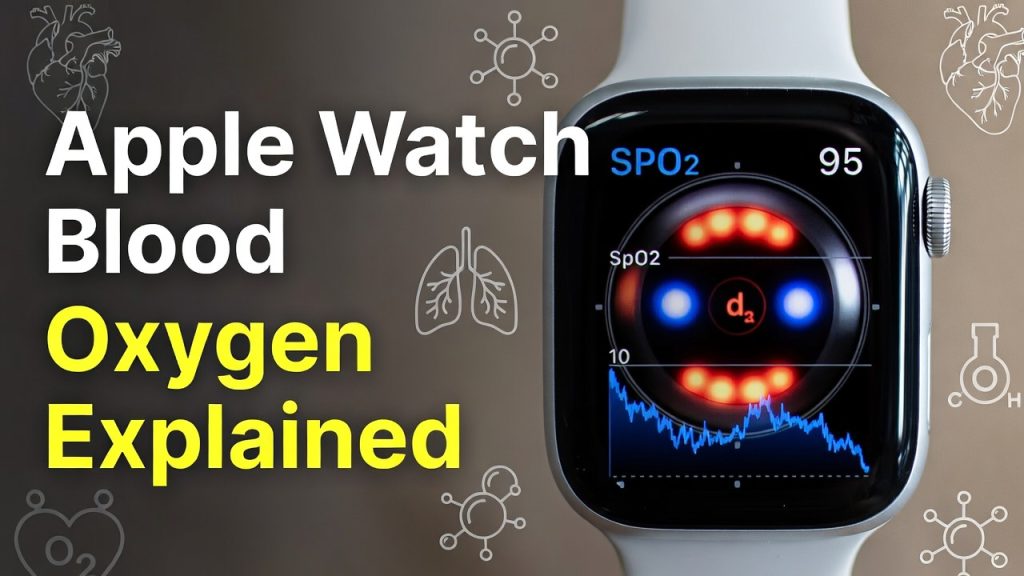
Apple has long positioned the Apple Watch as more than just a timekeeping accessory it is a health companion worn on your wrist around the clock. Among the many health-monitoring capabilities Apple has built into its smartwatch over the years, few are as medically significant as the blood oxygen sensor, also known as a pulse oximeter. Introduced with the Apple Watch Series 6 in 2020, this feature allows users to quickly and conveniently check their blood oxygen saturation level, known clinically as SpO2, directly from their wrist.
Blood oxygen measurement might sound like a niche medical concern, but it is actually a vital sign that doctors rely on routinely to assess respiratory function, cardiac health, and overall physical wellbeing. The COVID-19 pandemic brought pulse oximetry into mainstream awareness, as low blood oxygen levels became a key warning sign of severe illness. Having that capability on your wrist, available at any moment, represents a meaningful step forward in consumer health technology.
This guide is your comprehensive resource for everything related to the Apple Watch blood oxygen feature. We will cover what blood oxygen is and why it matters, how the Apple Watch sensor works at a technical level, the brief but significant patent dispute that temporarily removed the feature from new devices, how to set up and use the feature on your current Apple Watch, how to interpret your readings, and the important medical caveats you need to understand to use this tool responsibly.
Whether you are a new Apple Watch owner discovering this feature for the first time, or an experienced user looking to get more out of your health data, this guide has everything you need. By the end, you will have a thorough understanding of the science behind the sensor, the history of its availability, and the practical skills to incorporate blood oxygen monitoring meaningfully into your daily health routine.
This guide covers Apple Watch Series 6 through Series 10 and Apple Watch Ultra 2, running watchOS 11.6.1 with a paired iPhone running iOS 18.6.1 or later.
What Is Blood Oxygen and Why Does It Matter?
Blood oxygen saturation, abbreviated as SpO2, is a measure of the percentage of hemoglobin in your red blood cells that is currently carrying oxygen. Hemoglobin is the protein in red blood cells responsible for transporting oxygen from your lungs to every tissue and organ in your body. When you breathe, oxygen passes from your lungs into your bloodstream, where it binds to hemoglobin molecules. Those oxygenated red blood cells then travel through your arteries to deliver oxygen to your brain, heart, muscles, and all other vital organs.
A healthy person at sea level, breathing normal air without any respiratory or cardiac conditions, will typically have a blood oxygen saturation of 95% to 100%. This means that between 95% and 100% of their hemoglobin is carrying oxygen — a fully or near-fully oxygenated bloodstream that is efficiently delivering oxygen to where it is needed.
What Happens When Blood Oxygen Drops?
When blood oxygen saturation falls below healthy levels, the body begins to experience a condition called hypoxemia — literally, low oxygen in the blood. This can range from mild to life-threatening depending on how far the levels drop and for how long.
Mild hypoxemia, with SpO2 readings in the 90% to 94% range, can cause symptoms including shortness of breath, increased heart rate, headache, and difficulty concentrating. Many people begin to notice these symptoms at high altitude, where the lower atmospheric pressure means there is less oxygen available with each breath.
More severe hypoxemia — SpO2 below 90% — is a medical concern that warrants prompt evaluation. At these levels, organs that are particularly sensitive to oxygen deprivation, especially the brain and heart, can be damaged. Readings consistently below 90% may indicate conditions such as chronic obstructive pulmonary disease (COPD), pneumonia, pulmonary embolism, congestive heart failure, or severe asthma.
Extreme hypoxemia with SpO2 below 80% is a medical emergency that can cause confusion, loss of consciousness, organ failure, and death if not treated promptly.

Figure 1: SpO2 levels at a glance — from normal (95-100%) to borderline and low ranges
SpO2 and Sleep Health
Blood oxygen levels are particularly important during sleep. When we sleep, our breathing can slow and become irregular, sometimes causing temporary drops in blood oxygen levels. In people with sleep apnea, breathing repeatedly stops and restarts during the night, causing significant oxygen desaturation events that disrupt sleep quality and, over time, carry serious cardiovascular and cognitive consequences.
The Apple Watch can take periodic background blood oxygen readings throughout the night while you sleep, giving you data about your overnight oxygen levels in the iPhone Health app. While this is not a diagnostic tool for sleep apnea, persistent nighttime readings below 90% could be a reason to discuss a formal sleep study with your doctor.
Understanding SpO2 vs. Heart Rate
It is common for people to confuse blood oxygen measurement with heart rate measurement, since both use optical sensors that shine light through the skin. However, these measure fundamentally different things. Heart rate counts the rhythmic pulses of blood volume change with each heartbeat. Blood oxygen measures the color of your blood as a proxy for how much oxygen it is carrying — oxygenated hemoglobin absorbs infrared light differently than deoxygenated hemoglobin, and the sensor exploits this physical difference.
How the Apple Watch Blood Oxygen Sensor Works
The Apple Watch blood oxygen sensor is an optical sensor built into the back crystal of the watch case — the surface that rests directly against your wrist when you wear it. Understanding how it functions at a technical level helps you use it correctly and interpret its readings with appropriate context.
The Hardware Components
The sensor consists of two main hardware components: light-emitting diodes (LEDs) and photodiodes, integrated into the back crystal of the watch case.
There are four LED clusters, each emitting different types of light:
- Red LED: Red light at approximately 660 nanometers. Oxygenated hemoglobin absorbs red light less than deoxygenated hemoglobin, meaning more red light passes through well-oxygenated blood.
- Green LED: Green light at around 530 nanometers, primarily used for heart rate measurement due to its strong absorption characteristics with hemoglobin.
- Infrared LED: Infrared light at approximately 940 nanometers. Oxygenated hemoglobin absorbs more infrared light than deoxygenated hemoglobin — the opposite of its red light behavior. The ratio of red to infrared absorption enables calculation of blood oxygen saturation.
- Photodiodes: Four sensitive light detectors capture light reflected back from your wrist tissue. The intensity and spectral composition of the reflected light encodes information about blood oxygenation.
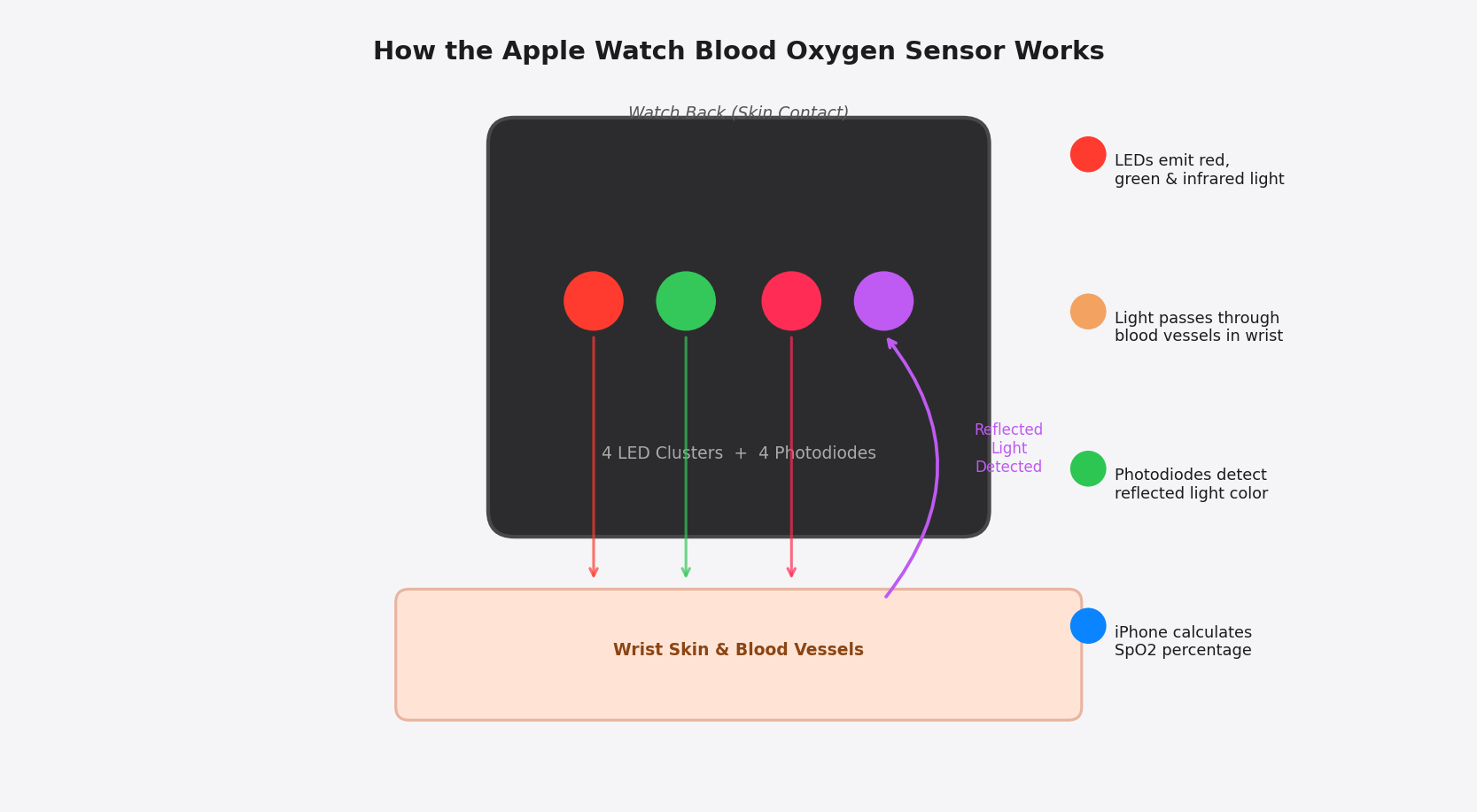
Figure 2: How LEDs and photodiodes work together to calculate SpO2 from reflected light color
The Measurement Algorithm
Raw light reflection data from the photodiodes is processed by an algorithm. In the original pre-redesign version, this algorithm ran on the Apple Watch itself. Following the patent-driven redesign released in 2025, the algorithm now runs on your paired iPhone, with the watch transmitting raw sensor data to the phone for processing and display.
The algorithm uses a technique called photoplethysmography (PPG). By analyzing how light absorption changes with each heartbeat, it separates the pulsatile signal (caused by oxygenated blood pumping through arteries) from the baseline signal (caused by static tissue and venous blood). The ratio of pulsatile red to infrared absorption provides the SpO2 value using a calibration curve established through clinical studies.
Why Measurement Conditions Matter
The optical measurement is highly sensitive to motion. When your wrist moves, skin contact changes and muscle contractions alter the blood volume under the sensor, creating signal artifacts that can corrupt the reading. This is why Apple instructs users to keep their wrist and hand completely still during any on-demand measurement.
Skin pigmentation can also affect accuracy. Research has shown that higher melanin levels in darker skin tones can interfere with optical pulse oximeter light absorption measurements, sometimes producing less accurate readings. Apple acknowledges in its Blood Oxygen documentation that skin perfusion, motion, and individual factors can affect accuracy. This remains an active area of research in the wearable health technology industry.
Pro Tip: For the most accurate on-demand reading, sit quietly, rest your wrist flat on a table, keep completely still for the full 15 seconds, and avoid measuring immediately after exercise.
The Patent Dispute: Why the Feature Disappeared and Came Back
In early 2024, Apple became embroiled in a significant patent dispute with Masimo Corporation, a medical technology company specializing in pulse oximetry technology. Masimo alleged that Apple had incorporated technology covered by its patents into the Apple Watch blood oxygen sensor. The US International Trade Commission (ITC) investigated the complaint and sided with Masimo, issuing an import ban on certain Apple Watch models that included the blood oxygen sensor.
To comply with the ruling and continue selling the Apple Watch Series 9 and Apple Watch Ultra 2 in the United States, Apple took the unusual step of disabling the blood oxygen feature entirely through a software update. New Apple Watch units shipped without any blood oxygen functionality for more than a year — a notable regression for users who had come to rely on the feature for daily health monitoring.
The Technical Redesign
Apple pursued multiple legal strategies to restore the feature while simultaneously engineering a technical solution that would work around the disputed patents. The core architectural change in the redesigned version is straightforward but significant: rather than having the Apple Watch measure, calculate, and display blood oxygen readings independently, the redesigned system uses the watch only to collect raw optical sensor data. That data is transmitted to the paired iPhone, where the actual SpO2 calculation takes place. The result is then displayed in the iPhone Health app.
This architectural change is largely transparent to the user in terms of the final reading value, but it does mean that you need your iPhone nearby to view results. You can no longer glance at your watch face to see a blood oxygen percentage — you need to open the Health app on your iPhone.
The Return of Blood Oxygen
Blood oxygen measurement returned to the Apple Watch Series 9, Series 10, and Ultra 2 with the release of watchOS 11.6.1 paired with iOS 18.6.1. Users needed to update both their watch and iPhone software to receive the restored feature. Anyone who had purchased an Apple Watch Series 9 or Ultra 2 during the period when blood oxygen was disabled found their device's health monitoring capabilities fully restored with these updates.
If you purchased an Apple Watch Series 9 or Ultra 2 between January 2024 and August 2025 without blood oxygen measurement, updating to watchOS 11.6.1 and iOS 18.6.1 restores the feature.
Compatible Apple Watch Models and Software Requirements
Blood oxygen measurement is available on a specific subset of Apple Watch hardware. Not all Apple Watch models include the necessary optical sensor. Before attempting to enable or use the feature, verify that your Apple Watch model supports it.
| Apple Watch Model | Blood Oxygen Support |
| Series 6 (2020) | Yes — original hardware design |
| Series 7 (2021) | Yes — original hardware design |
| Series 8 (2022) | Yes — original hardware design |
| Series 9 (2023) | Yes — redesigned version (watchOS 11.6.1+) |
| Series 10 (2024) | Yes — redesigned version (watchOS 11.6.1+) |
| Ultra (2022) | Yes — original hardware design |
| Ultra 2 (2023) | Yes — redesigned version (watchOS 11.6.1+) |
| SE (all generations) | No — hardware sensor not included |
| Series 4 and below | No — hardware sensor not included |
The Apple Watch SE is Apple's budget-oriented model and does not include the blood oxygen sensor to keep its cost lower. If blood oxygen monitoring is important to you when purchasing a new Apple Watch, ensure you are looking at a Series or Ultra model.
On the software side, you need iOS 18.6.1 or later on your iPhone for the redesigned blood oxygen feature. The iPhone does not need to be a specific recent model — any iPhone capable of running iOS 18 will work, which includes iPhone XS and newer models from 2018 onward.
Setting Up Blood Oxygen Measurement
Setting up the blood oxygen feature takes only a minute or two. The process involves enabling it through the Watch app on your iPhone and optionally adjusting the background measurement schedule to suit your lifestyle.
Enabling via the iPhone Watch App
Open the Watch app on your paired iPhone. This is the app with the Apple Watch silhouette icon that was automatically installed when you first paired your watch. Navigate to the Blood Oxygen option in the Watch app settings list. You will see a toggle switch labeled Blood Oxygen Recordings — turn this on if it is not already active. The toggle will appear green when enabled.
Configuring Background Measurements
Below the main toggle, the Allow Background Measures section controls when your Apple Watch automatically takes periodic blood oxygen readings without any manual trigger:
- In Sleep Focus: When enabled, your watch takes background blood oxygen readings while you sleep. This requires sleep tracking to be configured on your Apple Watch. These overnight readings are particularly valuable for spotting oxygen desaturation patterns. Note that the bright red LED sensor light can be visible in dark environments.
- In Theater Mode: If you regularly use Theater Mode in dark settings such as movie theaters or concerts, you may want to disable background readings in this mode so the sensor light does not become a distraction.
Configuration via Apple Watch
You can also manage settings directly from your Apple Watch. Press the Digital Crown to reach the home screen, open the Settings app (gear icon), and scroll to Blood Oxygen. Here you can toggle the sensor on or off and control the In Sleep Focus and In Theater Mode options. This is convenient for quick adjustments without pulling out your iPhone.
Privacy Note: Blood oxygen data is stored in the iPhone Health app and protected by Apple's Health data privacy framework. It is not shared with Apple or third parties without your explicit consent.
How to Take an On-Demand Blood Oxygen Reading
The on-demand manual reading is the most hands-on way to use the blood oxygen feature. It takes about 20 seconds from start to result and can be triggered at any time from the Blood Oxygen app on your watch.
Opening the Blood Oxygen App
The Blood Oxygen app comes pre-installed on compatible Apple Watch models. Look for it in your app grid or use the Siri search feature on your watch by saying "Blood Oxygen." The app icon is a white circle with red and blue curved lines radiating from the center. Tap to open it.
Preparing for an Accurate Reading
The first time you open the Blood Oxygen app, it will display best-practice tips. Even for experienced users, following these guidelines every time significantly improves accuracy:
- Wear your Apple Watch on your wrist — not in your hand or lying on a surface.
- Position the watch approximately one finger width above your wrist bone, not directly on the bone itself.
- The watchband should be snug enough that the watch does not shift but not so tight that it is uncomfortable or restricts circulation.
- Sit down and rest your arm on a table or your knee, with your wrist facing upward.
- Keep your hand and wrist completely still for the entire measurement period.
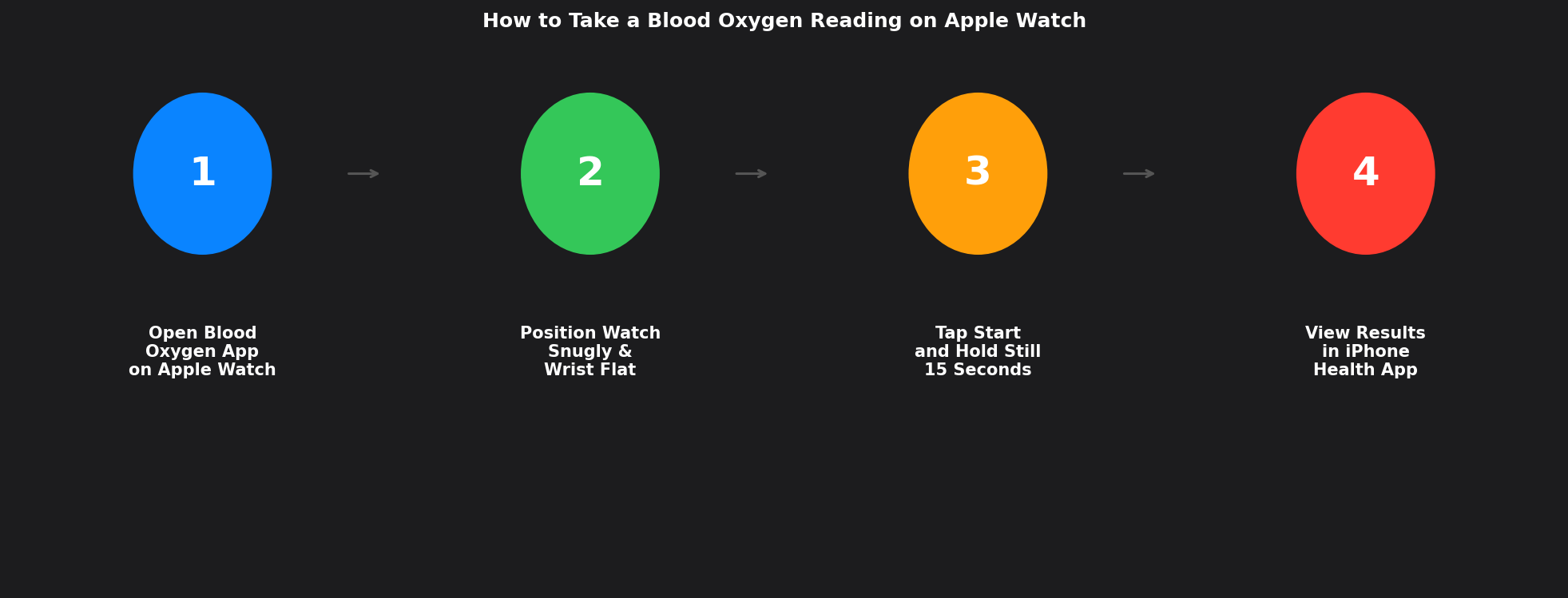
Figure 3: The four steps to a successful blood oxygen reading on Apple Watch
Starting the Measurement
With your wrist correctly positioned, tap the Start button in the Blood Oxygen app. A 15-second countdown begins immediately. The back of your watch will illuminate with a bright red light as the infrared LED activates. Keep completely still and avoid looking at or touching your watch during the countdown.
When the 15 seconds complete successfully, the screen displays your blood oxygen percentage as a large number. In the redesigned version, a notification will be sent to your iPhone. Tap Done to exit the measurement screen.
Unsuccessful Readings
Occasionally the measurement will fail. The app displays an "Unsuccessful" message when motion artifacts prevent a clean signal. Common causes include any wrist movement during the scan, a loose watchband, cold hands that reduce skin blood flow, or a very active period immediately before measuring. Tap Dismiss, readjust your position, and try again. Most users achieve reliable readings with careful attention to keeping still.
Viewing Your Blood Oxygen History in the Health App
The most health-valuable use of blood oxygen monitoring comes not from individual readings but from observing trends over days, weeks, and months. Your complete reading history lives in the iPhone Health app.
Accessing Your Data
After taking a reading, your Apple Watch sends the result to your iPhone with a notification. Tap that notification to jump directly to your blood oxygen data in the Health app. You can also access it anytime: open the Health app, tap the Browse tab, tap Respiratory, and select Blood Oxygen. Alternatively, use the Health app search function and type "blood oxygen."
Understanding the Charts
The Blood Oxygen detail screen shows a chart with your readings over time. At the top, you can switch between Day, Week, Month, 6 Months, and Year views. The Day view shows all individual readings for the current day. The Week and Month views reveal patterns — are readings consistently normal? Do nighttime readings dip noticeably? Is there a trend of improvement or decline?
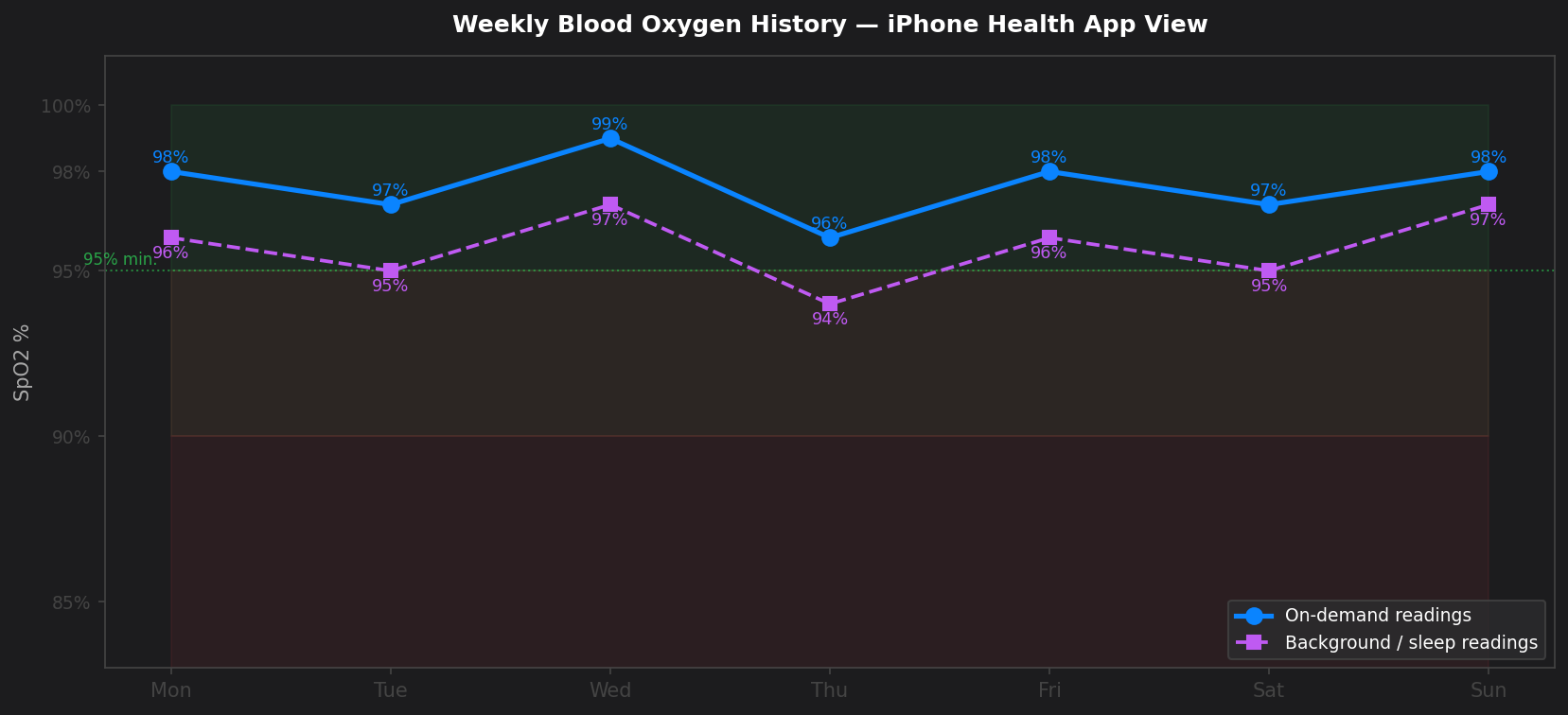
Figure 4: Sample weekly blood oxygen history showing on-demand readings (blue) and background sleep readings (purple)
8.3 Detailed Statistics
Tap Show More Blood Oxygen Data for granular statistics. The Oxygen Saturation screen offers four data views you switch between at the bottom:
- Latest: Your most recent reading with exact time stamp.
- Range: The high and low readings for the selected time period, showing variability.
- Average: Mathematical mean of all readings in the period — the most useful overall health indicator.
- High Elevation Environment: Context for readings taken at altitude, where naturally lower SpO2 is normal physiology, not illness.
Sharing Data with Healthcare Providers
The Health app allows you to export your health data to share with your doctor. Go to your profile in the Health app, scroll to Export All Health Data, and follow the prompts. Your physician can use the longitudinal trend data to inform clinical decisions that a single office visit measurement cannot support. You can also share specific records by tapping a data type and using the Share option.
How to Interpret Your Blood Oxygen Readings
A number alone means little without context. Understanding how to interpret different SpO2 values helps you use this feature for genuine health insight rather than anxiety.
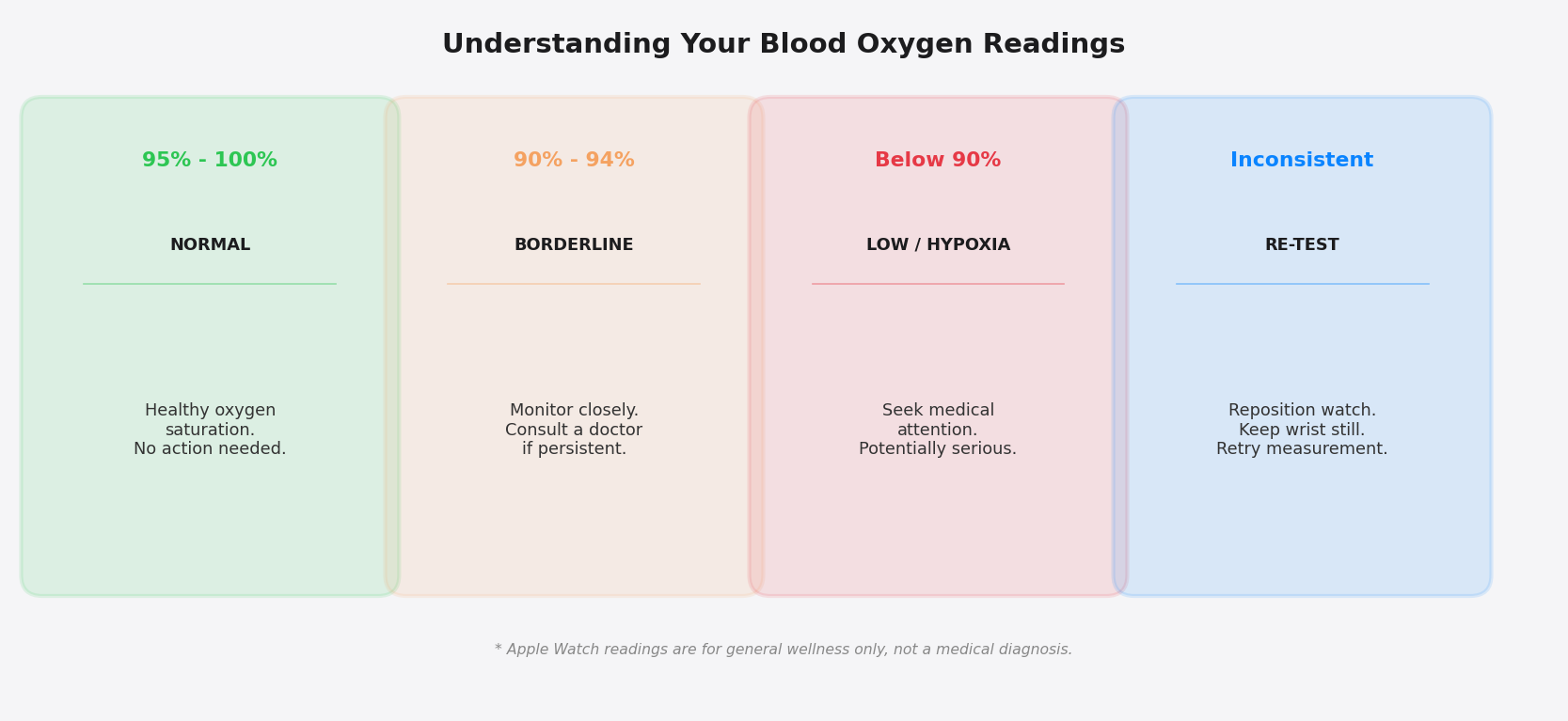
Figure 5: A guide to interpreting different SpO2 reading ranges from your Apple Watch
Normal: 95% to 100%
For a healthy adult at sea level, any reading between 95% and 100% is normal. Readings of 98% or 99% are excellent. A reading of 95% to 97% is still within the normal range and nothing to be concerned about. Over time, as you accumulate more readings, you will develop a sense of your personal typical baseline.
Borderline: 90% to 94%
A single reading in the 90% to 94% range often reflects a measurement artifact rather than a genuine health concern. Retake the measurement carefully two or three more times. If subsequent readings return to normal, the original reading was an anomaly. However, if you are consistently seeing 90% to 94% across multiple careful measurements at normal altitude and without any obvious external cause, it is worth mentioning to your doctor.
Low: Below 90%
Consistent readings below 90% are a potential medical concern. Apple's own guidance states that consistent readings less than 90% are considered low and a potential sign of some underlying condition. If you are seeing multiple readings below 90% under good measurement conditions at normal altitude and you otherwise feel well, contact your healthcare provider. If you also have symptoms such as severe shortness of breath, chest pain, confusion, or blue-tinged lips, seek emergency care immediately.
Factors That Can Lower Readings Without Indicating Illness
- Altitude: At high elevations (above approximately 8,000 feet / 2,400 meters), readings of 90% to 95% are normal physiology due to reduced atmospheric oxygen.
- Cold hands: Peripheral vasoconstriction when cold reduces the quality of the optical signal and can produce lower readings.
- Motion during scan: Even slight movement corrupts readings. A low reading after any movement should be disregarded and remeasured.
- Loose watch fit: A watch that shifts with each heartbeat creates signal artifacts mimicking hypoxemia.
- Skin tone variation: Optical pulse oximeters can be less accurate for darker skin tones due to melanin interference with light absorption.
Medical Disclaimers and Responsible Use
One of the most important aspects of using the Apple Watch blood oxygen feature responsibly is understanding precisely what it is and what it is not designed to do. Apple is explicit and emphatic on this point.
Apple states clearly: "The Blood Oxygen app measurements are not intended for medical use, including self-diagnosis or consultation with a doctor, and are only designed for general fitness and wellness purposes."
Consumer Device vs. Medical Device
The Apple Watch is a general consumer wellness product, not a medical device. Medical-grade pulse oximeters used in clinical settings undergo rigorous testing and regulatory approval — FDA clearance in the United States — verifying accuracy across diverse patient populations and conditions. The Apple Watch blood oxygen sensor has not completed this regulatory pathway.
This does not mean the Apple Watch sensor is inaccurate for a healthy person in normal conditions. For trend monitoring and general wellness awareness, it can provide genuinely useful data. However, it cannot replace the precision of clinical measurements for medical decision-making.
Not a Diagnostic Tool
The Apple Watch cannot diagnose sleep apnea, COPD, pulmonary embolism, COVID-19, or any other condition. It provides data points that may prompt you to seek further medical evaluation — a valuable but fundamentally different role from clinical diagnosis. If your readings concern you, the appropriate response is to consult your doctor and bring your Health app data as supporting information.
Avoiding Health Anxiety
For users prone to health anxiety, constant access to health metrics can become counterproductive. If you find yourself taking many readings per day or feeling anxious about readings of 96% rather than 99%, step back from on-demand monitoring. Configure the feature for passive background collection and review weekly averages periodically rather than individual readings obsessively.
Guidance: A single lower reading is almost always a measurement artifact. Your body has robust physiological mechanisms that maintain blood oxygen, and genuine hypoxemia causes noticeable symptoms before it becomes dangerous.
Blood Oxygen Measurement and Sleep Health
Overnight background blood oxygen monitoring is arguably the most powerful health application of the Apple Watch pulse oximeter. During waking hours, symptomatic hypoxemia is immediately apparent from how you feel. During sleep, you have no such awareness — passive monitoring fills this gap.
Setting Up Overnight Monitoring
To enable overnight blood oxygen monitoring, you need sleep tracking configured on your Apple Watch. Set up a sleep schedule in the Health app or Sleep app on your iPhone, enable Sleep Focus, and wear your Apple Watch to bed each night. Ensure the watch is sufficiently charged — overnight monitoring consumes battery, so charging to at least 50% before bed is advisable.
With sleep tracking active, your Apple Watch will automatically take periodic blood oxygen readings throughout the night without any action from you. These appear in the Health app alongside your sleep stage data (light, deep, and REM sleep) each morning.
Interpreting Overnight Data
Healthy sleepers at normal altitude maintain blood oxygen predominantly in the 95% to 100% range throughout the night, with occasional brief natural dips during REM sleep that quickly recover. Frequent or prolonged drops below 90% during sleep are associated with sleep apnea events. If your overnight Apple Watch data consistently shows significant desaturation, discuss this with your doctor and ask about a formal sleep study.
The Apple Watch and Sleep Apnea
The Apple Watch blood oxygen sensor cannot diagnose sleep apnea. Formal diagnosis requires polysomnography or an FDA-approved home sleep test device. However, overnight oxygen trend data from your Apple Watch can be a useful first signal that motivates seeking formal evaluation. Apple has separately developed a Sleep Apnea Notification feature using the accelerometer to detect irregular breathing movements, which received FDA clearance as an accessory for identifying signs of moderate to severe sleep apnea — a complementary feature to blood oxygen monitoring.
Tips for Getting the Best Results
With an understanding of the technology and its proper use, these practical tips help maximize the quality and value of your blood oxygen readings.
Optimize Watch Fit
The single biggest factor in reading quality is watch-to-wrist contact. The watch must maintain firm, consistent contact with your skin throughout the measurement. The band should allow you to slide one finger comfortably underneath but no more. Position the watch one finger width above your wrist bone, over the soft tissue of the forearm where capillaries are readily accessible to the sensor.
Warm Up Before Measuring
If your hands are cold, warm them before taking a reading. Cold causes peripheral vasoconstriction that reduces blood flow to skin capillaries, weakening the optical signal. Briefly running your hands under warm water or rubbing them together for 30 seconds significantly improves signal quality in cold conditions.
Time Readings Thoughtfully
Avoid taking readings immediately after vigorous exercise, as residual motion artifacts and altered circulatory state can affect accuracy. Allow a few minutes for your body to settle into a calm resting state. Similarly, avoid measuring immediately after holding your breath or experiencing acute emotional stress.
Trust Trends Over Individual Readings
Enable background monitoring and review your weekly average in the Health app rather than fixating on any single reading. A week of data showing consistent 97% to 99% averages is far more health-meaningful than any individual measurement. The trend is the health signal; individual readings are just noisy data points.
Use the Built-In Educational Resources
At the bottom of the Blood Oxygen screen in the Health app, Apple provides a link to Mayo Clinic resources on blood oxygen levels. This includes detailed information on what affects SpO2, when readings warrant medical attention, and conditions associated with low oxygen. Taking a few minutes to read this content provides valuable context for interpreting your own data.
Conclusion
The blood oxygen sensor in the Apple Watch stands as one of the most significant health monitoring additions Apple has made to its wearable platform. The ability to check your SpO2 level passively throughout the day and automatically while you sleep provides a level of health awareness that was previously only available in clinical settings or to people willing to carry a separate dedicated pulse oximeter.
The journey of this feature from its 2020 debut through the 2024 patent dispute and 2025 technical redesign illustrates both the challenges and the commitment involved in integrating meaningful medical-grade sensors into a consumer product. The redesigned architecture — processing on the iPhone rather than the watch — represents a pragmatic engineering solution that preserves the health value of the feature while navigating a complex legal and patent landscape.
For most Apple Watch owners, the blood oxygen feature works best as a passive trend-monitoring tool. Enable background measurements, let the data accumulate over weeks and months, and periodically review your averages and overnight readings in the Health app. Use on-demand readings occasionally to check in, particularly when you have been at altitude, during an illness, or whenever you are curious about your current status.
Most importantly, remember the context: this is a wellness tool in a consumer device, not a medical diagnostic instrument. Let your Apple Watch readings inform your health conversations with your doctor, not replace them. A reading that consistently deviates from normal is a prompt to seek professional evaluation — not a diagnosis in itself.
Used with this understanding, the Apple Watch blood oxygen feature is a genuinely valuable addition to your daily health awareness. Set it up, keep your watch charged and well-fitted, and let the data work quietly in the background as one more layer of insight into your long-term health.
Remember: A reading in the normal range is reassuring, but a healthy lifestyle, regular medical check-ups, and attention to your symptoms remain the foundation of good health. Your Apple Watch is a companion, not a clinician.
Quick Reference Card
| Topic | Key Information |
| Normal SpO2 range | 95% to 100% |
| Borderline range | 90% to 94% — monitor; consult doctor if persistent |
| Low range | Below 90% — consult a doctor; symptoms need emergency care |
| Supported models | Series 6 through Series 10, Ultra, Ultra 2 (not SE) |
| Software required | watchOS 11.6.1 + iOS 18.6.1 for redesigned version |
| Measurement time | 15 seconds for on-demand reading |
| Results location | iPhone Health app > Browse > Respiratory > Blood Oxygen |
| Night monitoring | Requires Sleep Focus and sleep tracking to be enabled |
| Medical note | For general wellness only — not intended for medical diagnosis |
| Redesign note | Series 9 / Ultra 2 / Series 10: calculations done on iPhone, not watch |
Apple Watch Blood Oxygen (SpO2) FAQ
1. What is Blood Oxygen (SpO2) and why is it important?
Blood Oxygen or SpO2 measures the percentage of hemoglobin in your blood carrying oxygen. Normal levels are 95–100%. It helps monitor heart, lung, and overall body health.
2. Which Apple Watch models support Blood Oxygen?
-
Series 6, 7, 8 → original sensor
-
Series 9, 10, Ultra 2 → redesigned sensor (calculations done on iPhone, requires watchOS 11.6.1 + iOS 18.6.1)
-
Ultra (2022) → original sensor
-
SE and Series 4 or older → not supported
3. How do I enable Blood Oxygen on my Apple Watch?
-
Via iPhone Watch App: Open “Blood Oxygen” → toggle “Blood Oxygen Recordings”
-
Configure background measurements during sleep or Theater Mode
-
Directly on Apple Watch: Settings → Blood Oxygen → toggle options as needed
4. How long does an on-demand SpO2 reading take?
Approximately 15–20 seconds, with your wrist and watch kept completely still.
5. How can I view my SpO2 results and history?
-
All readings are sent to iPhone Health App → Browse → Respiratory → Blood Oxygen
-
You can view daily, weekly, monthly, or yearly trends
6. What do SpO2 readings mean?
-
Normal (95–100%) → healthy
-
Borderline (90–94%) → monitor trends, retake reading if needed
-
Low (<90%) → consult a doctor; seek immediate care if symptoms appear
7. Can the Apple Watch be used as a medical device?
No. The Apple Watch is a consumer wellness tool, not a diagnostic device. SpO2 data is for trend monitoring, not medical diagnosis.
8. What factors can affect SpO2 accuracy?
-
Wrist movement during measurement
-
Loose or poorly positioned watch
-
Cold hands / reduced circulation
-
Skin pigmentation
-
Recent physical activity or stress
9. Tips for accurate SpO2 readings:
-
Ensure watch fits snugly, not too loose
-
Keep your wrist and watch still
-
Avoid measuring immediately after exercise or when hands are cold
-
Use background measurements for long-term trends
10. Can the Apple Watch track SpO2 during sleep?
Yes. With Sleep Focus and sleep tracking enabled, it can take automatic readings overnight, displayed in the Health app alongside sleep stage data.
11. What changed after Apple’s patent dispute with Masimo?
On Series 9 / Ultra 2, SpO2 calculation moved to the iPhone. The feature was temporarily disabled in 2024, then restored with the 2025 redesign.
Leave a Reply