
Using Bootstrap to Create Material Design Web Apps – Complete 2026 Tutorial (Updated for Bootstrap 5 & Modern Practices)
1 week ago
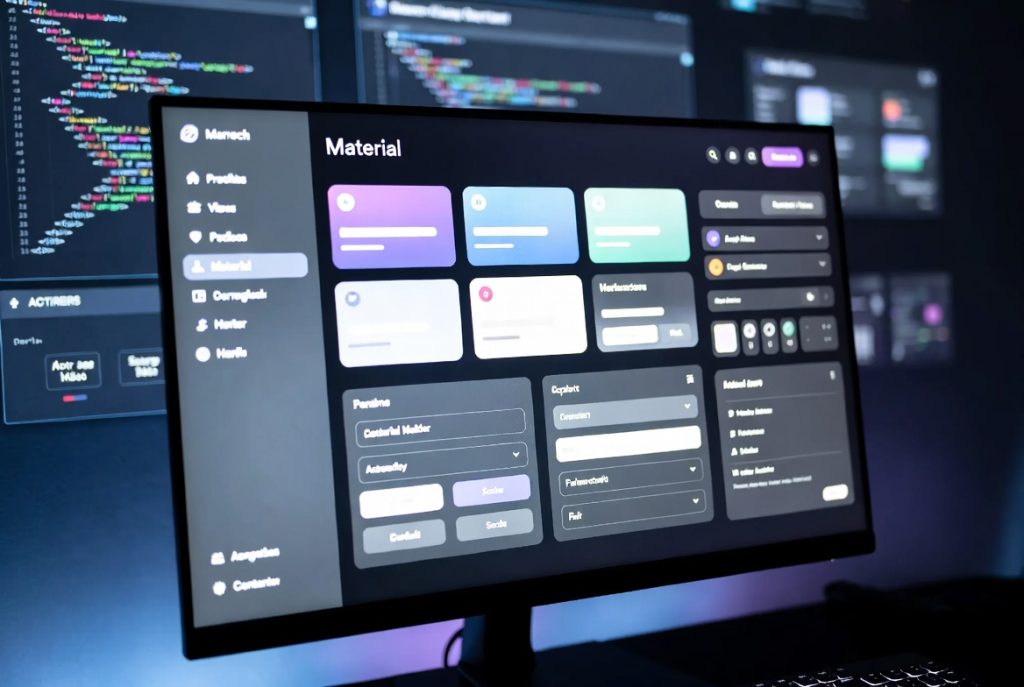
Google’s Material Design has become one of the most recognizable and loved design languages in the digital world. Its bold colors, subtle shadows, clean typography, and intuitive layouts make apps and websites feel modern, consistent, and user-friendly. While originally created for Android, Material Design principles have since influenced web design across platforms.
The good news for web developers is that you don’t need to build Material Design interfaces from scratch. MDBootstrap (Material Design for Bootstrap) makes it incredibly easy to combine the power and responsiveness of Bootstrap with the beautiful aesthetics of Material Design.
In this fully updated 2026 tutorial, we’ll walk through how to integrate MDBootstrap into your web projects and use its rich set of components to create stunning, responsive websites that look and feel like modern mobile apps.
You’ll learn how to:
- Set up MDBootstrap with Bootstrap 5
- Create a professional header with navigation
- Build responsive layouts using Bootstrap’s grid system
- Design Material-style cards, forms, and buttons
- Add interactive elements and animations
- Customize themes and colors easily
By the end of this tutorial, you’ll be able to create clean, professional web pages that follow Material Design guidelines without writing complex custom CSS from scratch.
Whether you’re building a portfolio, dashboard, e-commerce site, or landing page, MDBootstrap saves time while delivering polished results that users already love from their favorite mobile apps.
Let’s get started and bring Material Design to the web using Bootstrap.
Project Setup and Dependencies
What Is MDBootstrap? MDBootstrap is an open-source UI kit that extends Bootstrap with Material Design components, animations, and styling. It includes over 500 ready-to-use components, dozens of animations, and support for popular JavaScript frameworks.
In 2026, MDBootstrap has been updated to work seamlessly with Bootstrap 5, offering improved performance, better accessibility, and modern utilities.
Setting Up the Project Create a new HTML file and start with a basic HTML5 structure:
<!DOCTYPE html>
<html lang="en">
<head>
  <meta charset="UTF-8">
  <meta name="viewport" content="width=device-width, initial-scale=1.0">
  <title>My Material Design Page</title>

  <!-- Font Awesome -->
  <link rel="stylesheet" href="https://cdnjs.cloudflare.com/ajax/libs/font-awesome/6.5.1/css/all.min.css">

  <!-- Bootstrap 5 -->
  <link href="https://cdn.jsdelivr.net/npm/bootstrap@5.3.3/dist/css/bootstrap.min.css" rel="stylesheet">

  <!-- MDBootstrap -->
  <link href="https://cdnjs.cloudflare.com/ajax/libs/mdb-ui-kit/7.0.0/mdb.min.css" rel="stylesheet">
</head>
<body>

  <!-- Content goes here -->

  <!-- Bootstrap JS -->
  <script src="https://cdn.jsdelivr.net/npm/bootstrap@5.3.3/dist/js/bootstrap.bundle.min.js"></script>

  <!-- MDBootstrap JS -->
  <script src="https://cdnjs.cloudflare.com/ajax/libs/mdb-ui-kit/7.0.0/mdb.min.js"></script>
</body>
</html>
Why Use These CDNs? Using CDN links is the fastest way to get started. In production, you may prefer downloading the files or using a package manager like npm for better control and offline capability.
Testing the Setup Add a simple test element to verify everything is working:
<div class="container mt-5">
  <h1 class="text-center mb-4">Material Design + Bootstrap</h1>
  <button class="btn btn-primary">Test Button</button>
</div>
If the button shows Material Design styling (rounded corners, subtle shadow, ripple effect on click), your setup is successful.
Creating a Material Design Header and Navigation
Building the Top App Bar In Material Design, the header is often called the “Top App Bar.” It typically contains your logo, navigation links, and sometimes search or action buttons.
Here’s how to create a modern Material-style navbar using MDBootstrap:
<header>
  <nav class="navbar navbar-expand-lg navbar-dark bg-primary">
    <div class="container">
      <!-- Logo -->
      <a class="navbar-brand" href="#">
        <i class="fas fa-store me-2"></i>
        Bob's Store
      </a>

      <!-- Toggler for mobile -->
      <button class="navbar-toggler" type="button" data-mdb-toggle="collapse" data-mdb-target="#navbarNav">
        <i class="fas fa-bars"></i>
      </button>

      <!-- Navigation Links -->
      <div class="collapse navbar-collapse" id="navbarNav">
        <ul class="navbar-nav ms-auto">
          <li class="nav-item">
            <a class="nav-link" href="#">Home</a>
          </li>
          <li class="nav-item">
            <a class="nav-link" href="#">Products</a>
          </li>
          <li class="nav-item">
            <a class="nav-link" href="#">Offers</a>
          </li>
          <li class="nav-item">
            <a class="nav-link" href="#">About</a>
          </li>
        </ul>
      </div>
    </div>
  </nav>
</header>
Material Design Colors MDBootstrap provides easy-to-use color classes:
- bg-primary, bg-success, bg-info, bg-warning, etc.
- Text color classes like text-white, text-dark
You can also create custom themes using CSS variables for consistent branding.
Responsive Behavior The navbar automatically collapses into a hamburger menu on smaller screens, providing excellent mobile experience out of the box.
Using Bootstrap Grid with Material Design Cards
Creating a Responsive Layout Bootstrap’s grid system remains one of its strongest features. Combined with Material Design cards, you can create beautiful, responsive content sections quickly.
Example of a two-column card layout:
<div class="container mt-5">
  <div class="row">
    <div class="col-md-6 mb-4">
      <div class="card">
        <img src="tomatoes.jpg" class="card-img-top" alt="Cherry Tomatoes">
        <div class="card-body">
          <h5 class="card-title">Cherry tomatoes to get costlier</h5>
          <p class="card-text">With a no-deal Brexit, you're likely to pay 10% more for cherry tomatoes next month.</p>
          <a href="#" class="btn btn-primary">Read More</a>
        </div>
      </div>
    </div>

    <div class="col-md-6 mb-4">
      <div class="card">
        <img src="raw.jpg" class="card-img-top" alt="Raw Breakfast">
        <div class="card-body">
          <h5 class="card-title">Raw fruits and vegetables for breakfast?</h5>
          <p class="card-text">Raw fruits and vegetables that have been thinly sliced are a great way to start your day.</p>
          <a href="#" class="btn btn-primary">Read More</a>
        </div>
      </div>
    </div>
  </div>
</div>
Material Design Card Features MDBootstrap cards support:
- Images with card-img-top
- Titles with card-title
- Text with card-text
- Buttons with Material ripple effects
- Hover animations and shadows
Advanced Grid Usage You can create complex layouts using different column sizes (col-lg-4, col-md-6, col-sm-12) and offset classes for precise positioning.
Building Material Design Forms
Creating a Newsletter Signup Form Material Design forms are known for their clean floating labels and subtle animations. Here’s how to create one with MDBootstrap:
<div class="card mt-5">
  <div class="card-header bg-primary text-white">
    <h4 class="mb-0">Subscribe to our newsletter</h4>
  </div>
  <div class="card-body">
    <form>
      <div class="md-form mb-4">
        <input type="text" id="name" class="form-control">
        <label for="name">Your full name</label>
      </div>

      <div class="md-form mb-4">
        <input type="email" id="email" class="form-control">
        <label for="email">Your email address</label>
      </div>

      <div class="text-center">
        <button type="submit" class="btn btn-primary btn-rounded">Subscribe</button>
      </div>
    </form>
  </div>
</div>
Key Form Features
- Floating labels that animate when focused
- Consistent spacing and typography
- Material ripple effect on buttons
- Easy validation styling
Best Practices
- Use proper labels for accessibility
- Add helpful placeholder text
- Provide clear feedback for errors
- Keep forms simple and focused
Advanced Tips, Animations, and Best Practices
Adding Animations MDBootstrap includes dozens of built-in animations. You can easily add hover effects, entrance animations, and loading states.
Theming and Customization You can customize colors, typography, and shadows using CSS variables or by overriding MDBootstrap classes.
Performance Considerations
- Use only the components you need to keep file size small
- Consider lazy loading for images
- Optimize SVGs and icons
Accessibility
- Always include proper ARIA labels
- Ensure sufficient color contrast
- Test keyboard navigation
Next Steps and Further Learning
- Explore more advanced components like modals, carousels, and data tables
- Integrate with JavaScript frameworks (React, Vue, Angular)
- Build full admin dashboards or e-commerce interfaces
- Contribute to the open-source MDBootstrap community
Final Verdict MDBootstrap remains one of the fastest and most elegant ways to bring Material Design to the web using Bootstrap. With its extensive component library, beautiful defaults, and responsive grid system, you can create professional, modern websites in record time.
FAQ
1. What is MDBootstrap?
MDBootstrap is a UI kit that combines Bootstrap 5 with Google’s Material Design to create modern, responsive, and visually appealing web interfaces.
2. Is MDBootstrap free to use?
Yes, MDBootstrap offers both free and premium versions, with the free version providing core Material Design components.
3. What is the difference between Bootstrap and MDBootstrap?
Bootstrap provides basic responsive components, while MDBootstrap adds Material Design styling, animations, and advanced UI elements.
4. Do I need to know Bootstrap before using MDBootstrap?
Basic knowledge of Bootstrap is helpful, but beginners can still learn MDBootstrap easily due to its simple structure and documentation.
5. Can I use MDBootstrap in React or Vue?
Yes, MDBootstrap supports integration with modern frameworks like React, Vue, and Angular.
6. Is MDBootstrap good for professional websites?
Yes, it is widely used for dashboards, portfolios, landing pages, and business websites due to its clean Material Design system.
7. Does MDBootstrap work with Bootstrap 5?
Yes, MDBootstrap 2026 is fully compatible with Bootstrap 5 and includes updated components and utilities.
8. What can I build with MDBootstrap?
You can build dashboards, e-commerce sites, portfolios, admin panels, blogs, and modern landing pages.
Leave a Reply