
WordPress Plugin Security: What to Do When Your Plugin Gets Compromised
1 month ago · Updated 1 month ago
There are over one billion websites on the internet. Of these, approximately 43% run on WordPress — making it by far the most widely used content management system in the world. This extraordinary market dominance is simultaneously WordPress's greatest strength and its most significant security liability. The mathematics of targeting are unforgiving: why invest the effort to individually compromise websites one at a time when a single vulnerability in a widely used WordPress plugin can provide access to tens of thousands, hundreds of thousands, or even millions of websites simultaneously?
This is the fundamental logic that makes WordPress plugins such an attractive target for malicious actors. A vulnerability in a plugin installed on 4 million websites is not 4 million separate security problems — it is a single security problem with 4 million potential victims. The economics of hacking favor scale, and WordPress's plugin ecosystem provides the most concentrated, richest target environment in the history of the web.
WordPress plugins are also attractive targets because of the privilege levels they typically require to function. Many plugins need administrator-level access to integrate with the WordPress database, manage content, modify site structure, or communicate with external services. A compromised plugin that runs with administrative privileges is a compromised plugin that can do almost anything to a WordPress installation — create new admin users, modify files, inject code, extract data, or use the site as a platform for attacking visitors.
The Plugin Ecosystem: Scale, Diversity, and Risk
WordPress.org's official plugin repository contains over 60,000 plugins. Thousands more are available through commercial marketplaces like CodeCanyon, through direct developer sales, and through premium plugin subscriptions. For virtually any functionality a website needs — from contact forms to e-commerce to SEO optimization to social sharing to security itself — there is a WordPress plugin that claims to provide it.
This diversity is enormously valuable for website builders. Plugins allow non-developers to add sophisticated functionality to WordPress sites without writing a single line of code, dramatically reducing the cost and time required to build capable websites. For web designers and developers, plugins are productivity multipliers that allow a single person to build and maintain websites that would otherwise require teams of specialized developers.
But this same diversity creates a security challenge that is effectively impossible to fully solve at the platform level. WordPress.org does review plugins before they are listed in the repository, but this review is not a comprehensive security audit — it is a quality check that screens for obvious malicious code and gross violations of best practices. The repository simply does not have the resources to conduct deep security audits of the thousands of plugins submitted each month. And plugins from commercial marketplaces or direct developer sales are subject to even less scrutiny.
| 📊 The Numbers Behind the Risk
Patchstack State of WordPress Security 2024: 97% of WordPress vulnerabilities from plugins, 3% from themes, 0.2% from core. WPScan 2024 Threat Report: 827 abandoned plugins and themes identified — only 58.16% permanently removed from repository. Patchstack data: 42% of WordPress sites in 2023 had at least one vulnerable piece of software installed. Sucuri 2022: Only 36% of compromised WordPress sites had a vulnerable theme or plugin installed — highlighting the importance of multi-layered security. |
The Three Types of Plugin Security Problems
Not all plugin security problems are created equal. Understanding the different ways in which plugins can become security liabilities helps website owners prioritize their responses and focus their preventive efforts appropriately.
Type 1: Vulnerable Code
The most common type of plugin security problem is a vulnerability in the plugin's code — a programming error that creates a security weakness that attackers can exploit. These vulnerabilities take many forms: SQL injection vulnerabilities that allow attackers to query or modify the website database directly; cross-site scripting (XSS) vulnerabilities that allow malicious JavaScript to be injected into pages viewed by other users; authentication bypass vulnerabilities that allow access to protected functions without valid credentials; file upload vulnerabilities that allow malicious files to be planted on the server; and remote code execution vulnerabilities that allow arbitrary server-side code to be executed.
Vulnerable code vulnerabilities are typically addressed through plugin updates — the plugin author releases a patched version that fixes the security flaw. The window between vulnerability discovery and patch deployment, and the subsequent window between patch availability and installation by site owners, is when sites are most at risk. This is why keeping plugins updated is the most basic and critical plugin security practice.
Type 2: Supply Chain Attacks
Supply chain attacks are more insidious than code vulnerabilities because they target the distribution mechanism for plugin updates rather than the plugin code itself. In a supply chain attack, an attacker gains control of a plugin's distribution channel — typically by compromising the plugin author's WordPress.org account or by targeting a plugin's update server — and pushes a malicious update that includes backdoors or other attack code to all existing installations.
The June 2024 supply chain attack that affected Social Warfare and eight other plugins is a textbook example. Attackers compromised the accounts used to publish updates for these plugins and pushed updates containing identical malicious code across all nine plugins simultaneously. Because plugin updates are often set to install automatically, many websites received the malicious code without any human intervention. The attack was self-propagating through the very security mechanism — automatic updates — intended to keep sites safe.
Type 3: Abandoned and Zombie Plugins
The third category of plugin security risk is more passive but equally dangerous over time: plugins that have been abandoned by their developers. WPScan coined the term 'zombie plugins' to describe plugins that 'seem safe and up-to-date at first glance, but may contain unpatched security issues.' These are plugins whose authors have stopped maintaining them — no more updates, no more security patches, no more responses to reported vulnerabilities.
WPScan's 2024 threat report identified 827 such abandoned plugins and themes, and reported 404 of them to WordPress in a single day to draw attention to what they called a 'zombie plugin pandemic.' Of the 827 identified, only 58.16% were permanently removed from the WordPress repository — leaving over 40% still accessible and potentially still installed on active websites despite containing known unpatched vulnerabilities.
Case Studies — Two Major 2024 WordPress Plugin Attacks
The Social Warfare Supply Chain Attack
On June 22, 2024, the WordPress.org Plugin Review Team posted an urgent notice to the Social Warfare plugin support board. The message was stark: a malicious actor had taken over the Social Warfare plugin and had pushed versions containing malicious code that created unauthorized administrator accounts on any website using the affected versions. The announcement requested immediate action from all users of Social Warfare versions 4.4.6.4 through 4.4.7.1.
The malware distributed through this supply chain attack performed two primary malicious actions on infected websites. First, it created new WordPress user accounts with administrator-level privileges — giving the attacker persistent access to the website even if the compromised plugin was subsequently removed or updated. Second, it injected malicious JavaScript code into website footers that generated SEO spam across the site, adding hidden links and content designed to manipulate search engine rankings for the attacker's benefit. These were not subtle changes — they represented a comprehensive takeover of the infected website's administrative access and public content.
| Date | Event |
| June 22, 2024 | Social Warfare (4.4.6.4–4.4.7.1) compromised — malicious admin accounts + SEO spam injected |
| June 24, 2024 | Wordfence discovers 4 more plugins with same code: Blaze Widget, Wrapper Link Element, CF7 Multi-Step, Simply Show Hooks |
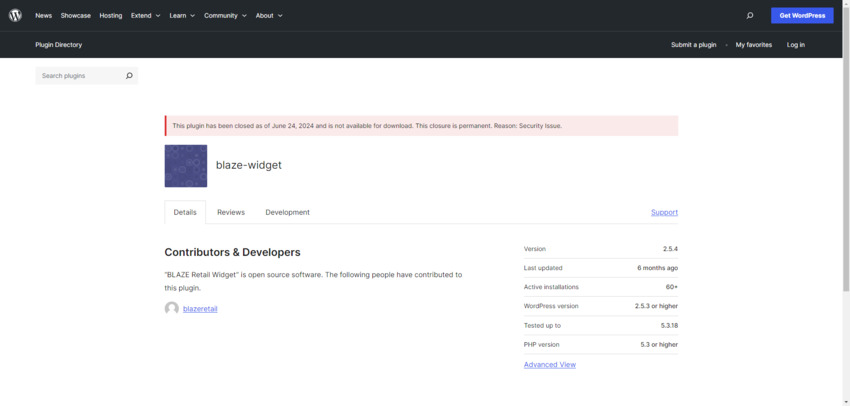
| June 24, 2024 | WordPress.org permanently removes Blaze Widget — 'Security Issue' closure |
| June 28, 2024 | 4 more compromised plugins found: WP Server Health Stats, Ad Invalid Click Protector, PowerPress, SEO Optimized Images |
| Nov 6, 2024 | Wordfence discovers critical auth bypass in Really Simple Security — 4 million+ sites at risk |
| Nov 7, 2024 | Plugin author responds to Wordfence notification; patch development begins |
| Nov 12, 2024 | Patched update released to Really Simple Security Pro users |
| Nov 14, 2024 | Patched update released to free users; WordPress attempts force-install of critical update |
Figure 2 — Timeline of major WordPress plugin security incidents in 2024
The Really Simple Security Critical Vulnerability
If the Social Warfare supply chain attack was concerning primarily because of how it spread (via compromised plugin infrastructure), the Really Simple Security vulnerability was alarming primarily because of its scale and severity. With over 4 million active installations, Really Simple Security is not a niche plugin — it is one of the most widely used security plugins in the WordPress ecosystem, chosen by millions of website owners specifically because they wanted to improve their site's security.
On November 6, 2024, Wordfence security researchers discovered a critical authentication bypass vulnerability in the plugin. The vulnerability allowed any unauthenticated attacker to gain administrative access to any WordPress site running Really Simple Security with its two-factor authentication feature enabled — precisely the feature that users had enabled to make their sites more secure. The cruel irony was that the security enhancement had inadvertently introduced a backdoor.
| "The WordPress.org Plugin Review Team was notified that a malicious actor had taken over Social Sharing Plugin – Social Warfare. As a result, versions 4.4.6.4 to 4.4.7.1 of the plugin created users with administrative privileges. The Plugin Review Team has disabled it and released a 'clean' updated version: 4.4.7.3. Please update immediately."
— WordPress.org Plugin Review Team, June 22, 2024 |
The response to the Really Simple Security vulnerability demonstrates both the best and worst aspects of how WordPress security incidents are handled. The best aspects: Wordfence contacted the plugin author immediately upon discovery, the author responded within 24 hours, and a patched version was deployed to Pro users within 6 days and free users within 8 days. WordPress.org, recognizing the critical severity, attempted to force-install the update on all affected sites — a capability that has existed in WordPress since around 2015 and is used only for the most severe vulnerabilities.
The worst aspects: the force-update mechanism did not work for every affected installation. Some sites remained running the vulnerable version days after the patch was available. Web developers whose clients had the vulnerable plugin installed may not have been aware of the issue, relying on automated processes that, in some cases, failed. The incident highlights the gap between a security fix being available and a security fix being actually installed — a gap that represents a period of maximum risk for affected sites.
Immediate Response — Step-by-Step Recovery
The Five-Step Recovery Framework
When you discover that one of the WordPress plugins installed on your website has been compromised, the situation demands swift, methodical action. Panic and inaction are equally unhelpful responses. What the situation requires is a clear-headed, systematic approach that addresses the immediate threat, cleans up any damage, and establishes protections against recurrence. The following five-step framework provides this structure.
Step 1: Review the Vulnerability Report
Before taking any action on your website, invest time in understanding the nature of the vulnerability. A vulnerability you understand is one you can effectively remediate; a vulnerability you do not understand may be partially addressed while leaving the core threat intact.
Seek out information from multiple sources. The plugin author may send a direct notification (as Really Simple Security did via email) explaining the nature of the vulnerability, the affected versions, and the recommended action. WordPress security research organizations — Patchstack, WPScan, and Wordfence — regularly publish detailed analyses of WordPress plugin vulnerabilities, including technical explanations of how the vulnerability works, what an attacker can achieve by exploiting it, and what specific changes to look for in your website.
For the Social Warfare attack, understanding the vulnerability meant knowing that the malicious code created new administrator accounts — which directed the cleanup effort toward reviewing user accounts and removing unauthorized ones. For the Really Simple Security vulnerability, understanding the authentication bypass meant knowing that the primary risk was unauthorized administrative access, which directed attention toward access logs and any suspicious administrative activity.
Step 2: Update or Replace the Plugin
If the plugin has been patched — meaning the author has released an updated version that removes the vulnerability — your first action should be to install that update immediately. Do not wait for automatic updates to run on their scheduled cycle. Log into WordPress and manually apply the update as soon as it is available.
For plugins where the vulnerability is being actively exploited, hours can matter. The window between patch availability and patch installation is the period of maximum risk for unpatched sites. If automatic updates were not configured before the incident, this is the moment to enable them — but only after verifying that the current version is clean.
In some cases — particularly with abandoned plugins, plugins that have been permanently removed from the repository, or plugins with a history of security problems — the appropriate response may be to deactivate and delete the plugin entirely rather than simply updating it. This decision requires balancing the functionality the plugin provides against the ongoing risk of maintaining it.
| ⚠️ When to Delete Instead of Update
Consider deleting a plugin entirely (rather than just updating) when: (1) The plugin has been permanently removed from WordPress.org with a 'Security Issue' closure notice; (2) The plugin has not been updated in over 12 months and shows no signs of active development; (3) This is not the first significant security incident with this plugin in a 12-month period; (4) The plugin is only tested up to a WordPress version that is significantly older than the current release; (5) The plugin author has been unresponsive to reported security issues. |
Step 3: Perform a Security Scan and Manual Review
Updating or replacing the compromised plugin addresses the entry point — but it does not address what may have already entered through that entry point. Even if your site appears normal and functional after applying a patch, post-incident security investigation is not optional. As Sucuri's 2021 Hacked Website Report warned: 'Website owners are often averse to taking all the necessary post-infection steps, but if measures aren't taken the attackers are likely to return.'
Begin with a manual visual review of your website. Navigate through as many pages as possible, including the page source code where accessible. Malware can take numerous forms: SEO spam (hidden links and text), redirects (sending users to different sites), page defacement (visible changes to content), code comments (non-executing code that can be activated later), or even the complete white screen of death (a fatal PHP error caused by malicious code). Not all forms of malware are immediately obvious, but some are detectable through careful observation.
Follow the manual review with a security plugin scan. WordPress security plugins like Wordfence, Sucuri Security, and MalCare include comprehensive malware scanners that compare your site's files against known clean versions and flag unexpected changes. These scanners can detect file modifications, injected code, and other indicators of compromise that are invisible to casual visual inspection.
Review your WordPress administrator user list carefully. Any user accounts that were not present before the incident, that you do not recognize, or that have privileges higher than expected should be immediately investigated and deleted if unauthorized. In the Social Warfare supply chain attack, the malicious code specifically created new administrator accounts — making this review particularly critical for any site that had the affected plugin installed.
Step 4: Clean Up or Roll Back
If your security scan or manual review reveals malicious code, unauthorized users, or other indicators of compromise, cleanup is required. The thoroughness of this cleanup should be proportional to the severity and duration of the compromise. A site that received a malicious plugin update but for which no exploitation is evident requires a lighter cleanup than a site that has been under attacker control for weeks.
For injected code and malicious content, the options are manual removal (finding and deleting the specific malicious code while preserving legitimate code) or rolling back to a known clean backup. Manual removal requires technical expertise and the risk of missing something; backup restoration is more thorough but requires having a clean backup available from before the compromise occurred.
This is why maintaining regular, automated backups is one of the most important WordPress security practices. A site with a clean backup from 24 hours before a security incident can be restored to a known-good state quickly and with confidence. A site without backups may face days of manual cleanup work with no guarantee that all malicious code has been found and removed.
Step 5: Strengthen Your Security Posture
The final step in the recovery process is also the beginning of an ongoing prevention practice: implementing a stronger, more systematic approach to plugin security management. A security incident is a costly and stressful experience, but it also provides the strongest possible motivation to implement the practices that reduce the likelihood of future incidents.
Vetting WordPress Plugins — A Professional Framework
Before You Install: Due Diligence
The most effective moment to prevent a security incident from a WordPress plugin is before the plugin is ever installed. Rigorous pre-installation vetting dramatically reduces the risk of adding a problematic plugin to your site or a client's site. The checklist below represents a professional standard for plugin vetting — the criteria that distinguish a trustworthy, well-maintained plugin from one that poses unacceptable risk.
| PLUGIN VETTING CHECKLIST: Before You Install | |
| ☐ Last Updated | Should be within the last 3–6 months. Plugins not updated in 1+ years are high risk. |
| ☐ Active Installations | The more, the better — but popularity alone is not a guarantee of quality. |
| ☐ WordPress Compatibility | Plugin must be tested with the current WordPress version (currently 6.7.x+). |
| ☐ Rating & Reviews | Look for consistently high ratings (4.5+) with substantial review volume. |
| ☐ Support Forum Activity | Plugin author should respond to support questions quickly and professionally. |
| ☐ Known Vulnerabilities | Search Patchstack, WPScan, and Wordfence databases for any CVEs attributed to the plugin. |
| ☐ Development Activity | Check the plugin's changelog. Regular updates signal active maintenance. |
| ☐ Open Source Code | For premium plugins, verify the developer's reputation and portfolio before purchasing. |
| ☐ Author Credentials | For CodeCanyon/premium plugins: Elite Author, Envato quality badge, years of membership. |
| ☐ Closed/Abandoned Flag | If the plugin page shows 'This plugin has been closed' — do NOT install or use it. |
Reading the Warning Signs
WordPress.org provides several signals that should immediately deter plugin installation. The most unambiguous is the closure notice: if a plugin page displays a warning such as 'This plugin has been closed as of [date] and is not available for download. This closure is permanent. Reason: Security Issue,' the message is unambiguous. This plugin should never be installed on any website, and if it is currently installed on any sites you manage, it should be immediately deactivated and deleted.
Less severe but still concerning signals include: plugins not updated in over a year; plugins only tested up to a WordPress version that is 2+ major versions behind the current release; plugins with very few reviews or with a pattern of negative reviews mentioning security or support issues; and plugins whose support forums show questions about security problems that have gone unanswered by the author for extended periods.
Evaluating Premium Plugins on Commercial Marketplaces
Premium plugins purchased through marketplaces like CodeCanyon operate in a different ecosystem from the free plugins on WordPress.org, with different vetting criteria appropriate to their context. The marketplace provides a layer of commercial accountability that the free repository does not — authors have financial incentives to maintain their products and reputational incentives to address security issues promptly.
When evaluating premium plugins on CodeCanyon or similar marketplaces, look for: Envato's quality review badge (indicating the plugin has passed Envato's technical review); author credentials including Elite Author status, years of membership, and Sales volume; overall rating with substantial review volume; and evidence of responsive support through the comments section. The last update date remains important — premium plugins should be updated regularly, with a maximum acceptable gap of three to six months.
Building a Sustainable Plugin Security Management System
The Core Principles of Plugin Security Management
Preventing future plugin security incidents requires more than good intentions — it requires systematic processes that are followed consistently regardless of workload pressure or time constraints. The following principles, implemented as regular practices rather than one-time measures, create a substantially more secure WordPress environment.
Ongoing Management Practices
| PLUGIN SECURITY MANAGEMENT CHECKLIST | |
| Use a security plugin | Install a reputable WordPress security plugin (Wordfence, Sucuri, or MalCare) to provide continuous monitoring, malware scanning, and firewall protection. |
| Enable auto-updates | Configure automatic updates for plugins you trust. For critical or complex plugins, consider manual review of updates before applying, but never leave plugin updates unattended indefinitely. |
| Regular manual check-ins | Log into your WordPress admin at least every few days to review available updates and apply them. Don't rely solely on automated processes. |
| Backup before updates | Take a full site backup before applying any major WordPress or plugin update. This creates a restoration point if the update causes problems. |
| Plugin audit every 3–6 months | Review your complete plugin list periodically. Deactivate and delete plugins you no longer use. Check each installed plugin for updates, support status, and security reports. |
| Monitor security sources | Subscribe to security blogs from Patchstack, WPScan, and Wordfence. Follow their RSS feeds or email newsletters to receive timely alerts about WordPress vulnerabilities. |
| Remove unused plugins | Every inactive plugin is a potential attack surface, even if deactivated. Delete unused plugins along with any database tables or files they created. |
| Host-level security | Leverage your web host's security features: server-level malware scanning, WAF (Web Application Firewall), and automatic backups. These provide a security layer independent of WordPress. |
| Zombie plugin monitoring | Watch for WordPress.org notifications about plugin closures. Review the WPScan and Patchstack vulnerability databases regularly for any plugins you have installed. |
The Developer's Responsibility to Clients
For web developers and designers who build and maintain WordPress sites for clients, plugin security is not merely a technical concern — it is a professional and potentially legal responsibility. When a client's website is compromised through a plugin vulnerability, the client is unlikely to direct their frustration at the plugin author who wrote flawed code. They are going to direct it at the person they hired to build and maintain their website: you.
This professional exposure is particularly acute when client data is involved. If a plugin vulnerability results in the exposure of customer personal data — names, email addresses, payment information, or any other personally identifiable information — the website owner may face obligations under data protection regulations (GDPR, CCPA, and others) to notify affected users, report to regulatory bodies, and demonstrate that reasonable security measures were in place. The web developer's vetting and maintenance practices will be directly relevant to these determinations.
Building a defensible security practice as a developer means not just following the technical steps outlined in this guide, but documenting them. Keep records of the plugin vetting process for plugins you install on client sites, of the update schedule you follow, and of any security incidents and your response to them. This documentation demonstrates professional due diligence and can be critical if a client relationship becomes contentious following a security incident.
| 📋 Client Communication During a Security Incident
When a plugin used on a client site is compromised: (1) Notify the client immediately — do not wait until the cleanup is complete; (2) Explain the nature of the issue in plain language, avoiding technical jargon; (3) Describe the immediate actions you are taking; (4) Provide a timeline for complete remediation; (5) After the incident, provide a written summary of what happened, what was done, and what changes are being made to prevent recurrence. Transparency and proactive communication are essential for maintaining client trust through a security incident. |
Security Resources and Staying Informed
Essential WordPress Security Sources
Staying ahead of WordPress plugin security threats requires regular engagement with the security research community that monitors the WordPress ecosystem. The following resources represent the highest-quality, most authoritative sources of WordPress security intelligence available.
| RECOMMENDED WORDPRESS SECURITY RESOURCES | |
| Wordfence | wordfence.com — Maintains a comprehensive real-time vulnerability database organized by plugins, themes, and core. Publishes detailed analyses of significant vulnerabilities. Offers both free and premium security plugins. |
| Patchstack | patchstack.com — Publishes annual State of WordPress Security reports with comprehensive data on vulnerability trends. Provides real-time vulnerability intelligence feeds. |
| WPScan | wpscan.com — Runs the WPScan vulnerability database, widely regarded as the most comprehensive WordPress vulnerability database. Publishes annual threat reports with detailed statistics. |
| Sucuri | sucuri.net — Leading provider of WordPress website security services. Publishes research reports on hacked website analysis. Offers malware removal services for compromised sites. |
| WP Tavern | wptavern.com — WordPress community news site that covers security incidents and plugin repository changes as they occur. |
| WordPress.org Blog | wordpress.org/news — Official WordPress communications about security updates, critical patches, and plugin repository changes. |
| Have I Been Pwned | haveibeenpwned.com — Check if email addresses associated with WordPress admin accounts appear in data breach databases. |
Vulnerability Databases Worth Bookmarking
The most actionable security intelligence for WordPress plugin users comes from vulnerability databases — maintained lists of known security flaws in WordPress plugins, themes, and core. When you learn that a plugin you use has been compromised, or when you are evaluating a plugin for installation, these databases are your first reference.
Wordfence's vulnerability database at wordfence.com/threat-intel/vulnerabilities/wordpress-plugins provides detailed information on plugin vulnerabilities including CVSS (Common Vulnerability Scoring System) severity scores, the specific vulnerability type, whether a patch is available, and the affected versions. The database can be filtered by date, severity, and plugin name, making it efficient to check a specific plugin's security history.
Patchstack's vulnerability database is organized similarly and often includes early disclosures of vulnerabilities that have been responsibly reported but not yet publicly announced, giving security-conscious website owners early warning. WPScan's database, which powers many third-party security tools, is the most comprehensive in terms of historical coverage and is particularly useful for researching the security history of plugins you are considering installing.
Conclusion: Security Is a Process, Not a Product
The statistics are sobering: 97% of WordPress software vulnerabilities come from plugins. 42% of WordPress sites have at least one vulnerable piece of software installed. Thousands of abandoned 'zombie plugins' remain active on websites long after their developers have stopped maintaining them. And a single critical vulnerability in a widely installed plugin can threaten millions of websites simultaneously.
These numbers could be interpreted as a reason to abandon WordPress plugins entirely — to build everything from scratch or switch to a different platform. This would be the wrong conclusion. WordPress plugins are not the problem; they are one of the most democratizing innovations in the history of web development, enabling non-programmers and small development teams to build sophisticated, powerful websites that would otherwise require large specialized teams. The problem is not plugins — it is the inevitable reality that any widely used software ecosystem will attract security researchers, both ethical and malicious, who will find and exploit its weaknesses.
The appropriate response is not avoidance but vigilance. Install fewer plugins, and choose them more carefully. Update installed plugins immediately when patches are available. Monitor security sources for vulnerability alerts affecting plugins you use. Maintain regular backups that enable quick recovery when incidents occur. Use security tools that provide monitoring and protection at the application level. And when a plugin you use is compromised, respond quickly, thoroughly, and with the systematic approach this guide provides.
Security is not a state to be achieved and then maintained effortlessly — it is a continuous practice that requires regular attention, informed decision-making, and the willingness to prioritize protection over convenience. Websites managed with this orientation will still face security challenges, because no security posture eliminates all risk. But they will face those challenges from a position of strength, with the knowledge and tools to respond effectively — and with the confidence that comes from knowing you have done everything reasonable to protect the websites and users in your care.
FAQ (Frequently Asked Questions)
1. Why are WordPress plugins a major security risk?
Because a single vulnerability in a widely used plugin can affect thousands or even millions of websites at once, making them highly attractive targets for attackers.
2. What percentage of WordPress vulnerabilities come from plugins?
Approximately 97% of WordPress vulnerabilities originate from plugins, making them the largest security risk in the ecosystem.
3. What are the main types of WordPress plugin security issues?
There are three main types: vulnerable code, supply chain attacks, and abandoned (zombie) plugins.
4. What is a supply chain attack in WordPress plugins?
A supply chain attack occurs when attackers compromise a plugin’s update system and distribute malicious code through official updates.
5. What are “zombie plugins”?
Zombie plugins are abandoned plugins that are no longer maintained but still installed on websites, often containing unpatched vulnerabilities.
6. What should I do if a plugin is compromised?
Immediately update or remove the plugin, scan your website for malware, review admin users, and restore from backup if necessary.
7. How often should I update WordPress plugins?
You should update plugins as soon as updates are available, especially if they contain security patches.
8. Is it safe to use many WordPress plugins?
Using too many plugins increases your attack surface. It’s best to use only necessary, well-maintained plugins.
9. How can I check if a plugin is safe before installing it?
Check last update date, reviews, active installations, developer reputation, and vulnerability databases like WPScan or Patchstack.
10. What is the best way to protect a WordPress site from plugin attacks?
Use security plugins, enable updates, perform regular audits, remove unused plugins, and maintain backups.
Leave a Reply